How to Pay for Apple Music with Cryptocurrency
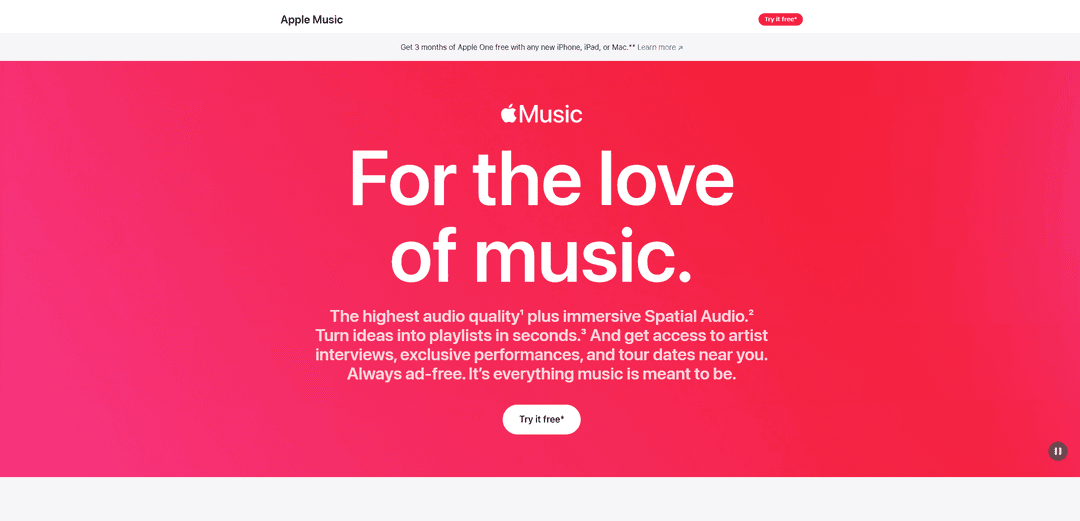
Apple Music is a music streaming service where all the music is available without ads. The subscription gives you high-quality sound and Spatial Audio, immersive sound where instruments seem to surround the listener. You can put together a playlist in a few seconds, and the service also has artist interviews, exclusive performances, and concert dates near you.
You can listen in the Music app and in a browser. But without an active subscription, there's no access to the music, and setting one up needs a payment method, even if the first months are free.
Below, we'll go over the plans, payment methods, and how to set up Apple Music with Mirocard step by step.
What Apple Music subscriptions are available
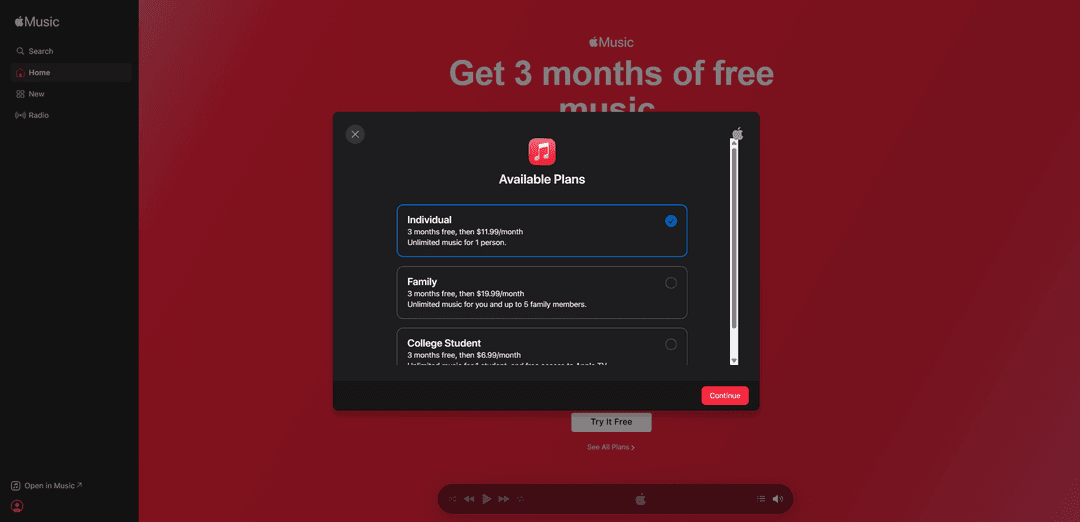
The plan selection window shows three options, and each has a three-month trial period. It's available once per person or family, and the prices below are taken from the checkout page and depend on the account's region.
"Family" is built for a family. It costs $19.99 a month and opens the music to you and five more family members. Each person gets their own library and recommendations. Split six ways, it comes out cheaper than the individual plan, but the members must be part of your family group.
"College Student" costs $6.99 a month and is meant for one student, and the description lists free access to Apple TV. It requires verifying student status through a partner service. The list may include other plans too, so scroll through the window.
Can you pay for Apple Music with cryptocurrency
Not directly. In the "Payment Method" window, the "Credit / Debit Card" type is selected, and the service expects card details, not a wallet address. There's no field for transferring coins.
So coins first have to become balance on a card. Going through an exchange takes long, because you have to sell the coins, withdraw the money to an account, and wait for it to arrive, and you'd have to repeat that chain with every payment. For a recurring subscription, that's inconvenient.
How to use cryptocurrency to pay for Apple Music
A shorter route goes through a virtual card. You send coins to the balance, get the details, and enter them in Apple's payment form, and the service sees an ordinary card. Conversion happens inside the payment service, with no exchange and no bank account.
Currency matters too. The plan price is listed in dollars, and the card is kept in dollars, so topping up with a stablecoin like USDT or USDC lets you work out the amount exactly. With that kind of top-up, the coin's exchange rate doesn't affect the subscription amount.
Mirocard for paying for Apple Music with cryptocurrency
A Mirocard card is topped up with cryptocurrency straight from a wallet. BTC, ETH, USDT, USDC, TON, TRX, and SOL all work, and coins are converted into dollars inside the service and show up on the card's balance right away. It's best to choose a network with a small fee for the transfer, because for a subscription of a few dollars, the fee is noticeable.
How to pay for Apple Music with Mirocard
First, issue a card. We covered sign-up, issuance, and the first top-up in detail in the guide to issuing a card. Once the details appear in your account and the balance is topped up, go to Apple Music. The card needs to hold the plan's price, because even with a free period, a payment method is required.
Open the Apple Music page and click "Try it free."
The "Payment Method" window opens. In the "Payment Type" list, leave "Credit / Debit Card." In the "Details" block, enter the Mirocard's details. The number goes in the "Card Number" field, the expiration month and year in "Expiration Date" in MM/YYYY format, and the code on the back in "CVV."
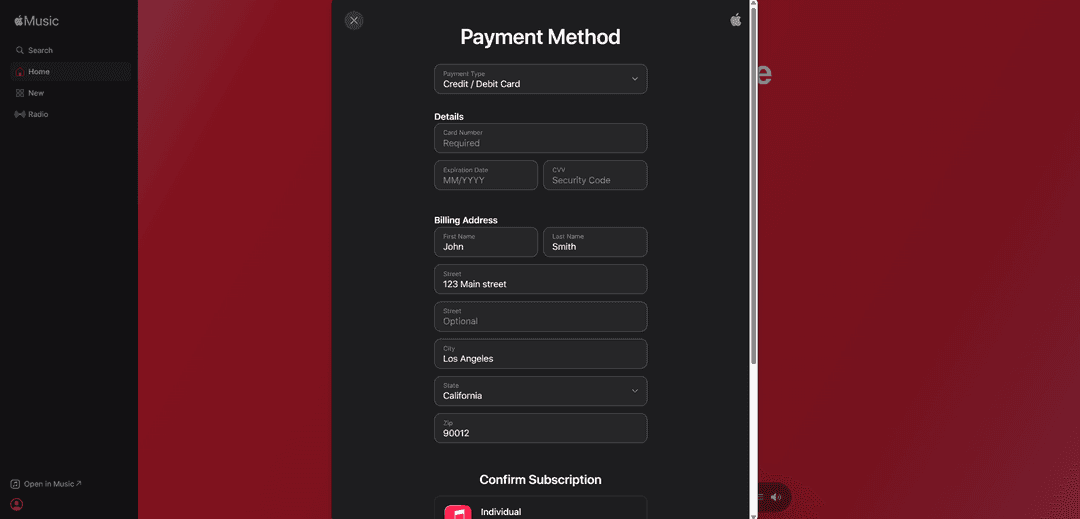
Below is the "Billing Address" block. It asks for your first name in "First Name," last name in "Last Name," street in "Street," city in "City," and postal code. The second "Street" line for an extra address is optional. The set of fields depends on the account's region, and in the example with the American form, there are also "State" and "Zip." Enter an address in the country that matches the card's details.
After filling these in, you'll land in the "Confirm Subscription" block. Check the plan, free period, and price. The example says "3-Month Free Trial" and "$11.99 per month" after the trial months. At the bottom, in small print, it says you can cancel the subscription in settings at least a day before the renewal date, otherwise the plan renews automatically.
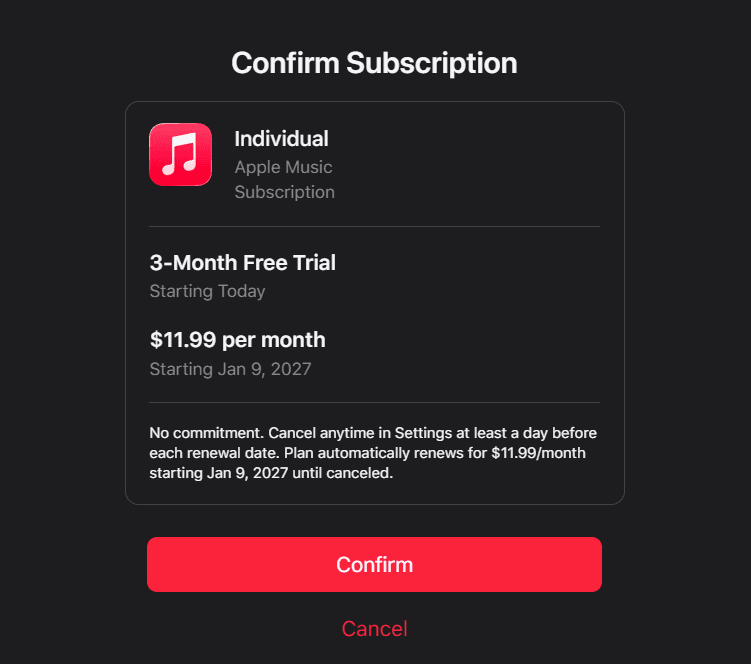
Click the "Confirm" button to confirm the payment. The "Cancel" button cancels the setup. If the bank asks for confirmation, enter the code from the message. Once setup finishes, the subscription appears on the account.
What to know about a family subscription
A family subscription is set up and paid for by the family group's organizer. The payment uses the payment details of their Apple Account, so the card needs to be linked to them specifically. You can subscribe in the Music app on the main page by choosing "See More Plans" and then "Family."
Members get access automatically if Family Sharing is already set up. If there's no group, the organizer first creates one on their device and invites people. Up to six people are included in the subscription, and each keeps their own library and recommendations.
Switching plans works without each person paying separately. The organizer can move an existing individual subscription to a family one. If someone in the group has their own individual or student subscription, its auto-renewal is canceled when the organizer sets up the family plan. So warn members in advance.
The trial period is available once per person or family. So on the "Confirm Subscription" screen, check whether there are free months, and keep the plan's price on the card.
Conclusion
A family plan is a better deal than an individual one if there are several listeners. The organizer pays once, and $19.99 covers up to six people. Top up your Mirocard card with a stablecoin for that amount, and the payment will go through with no exchanges or banks.