How to Pay for Figma with Cryptocurrency
Figma is an online service for interface design, prototypes, and collaboration on layouts. You can open it in a browser or the app, and the whole team sees the same file in real time. A designer draws a screen, a developer checks dimensions and code, a manager leaves comments, and nobody sends versions back and forth.
Below, we'll go over the paid plans, payment methods, and setting up a subscription through Mirocard.
What paid features Figma has
A paid plan lifts the free plan's limits and adds tools for working in a team. On the free Starter, you get unlimited drafts, templates and UI kits, plus 150 AI credits a day, but no more than 500 a month. The service's help center says it's limited to one team with one folder and three files, and version history is kept for 30 days.
You pay for seats, not for an account. A "Full seat" opens all products, a "Dev seat" is for developers to view layouts, and a "Collab seat" is for people who comment and join discussions. For Professional, the prices on the page are as follows. A full seat costs $16 a month, a dev seat $12, and a collab seat $3 when billed annually.
How Figma accepts payment
Payment follows the familiar bank card flow. On the subscription checkout page, you first choose a currency, then enter the card number, expiration date, and security code. The service shows Visa, Mastercard, American Express, and Discover icons.
Below is a "Billing" block where you enter your full name, country or region, and address. Choose the currency carefully, because on the pricing page, prices are shown in dollars, while in the payment form, you can switch them.
Before paying, you need to check a consent box. It says the subscription renews automatically every 12 months and the payment method is charged until you cancel the subscription or change the plan in admin settings. After that, the "Complete purchase" button becomes active.
How to use cryptocurrency to pay for Figma
You can't pay Figma with coins directly. The payment form has no wallet and no address to transfer to, only bank card fields, so crypto has to first turn into balance on a card.
The shortest route goes through a virtual card. You send coins to the balance, get the details, and enter them in Figma's form, and the service sees an ordinary card. Conversion happens inside the payment service, and no exchange or bank account is needed in the chain.
Mirocard for paying for Figma with cryptocurrency
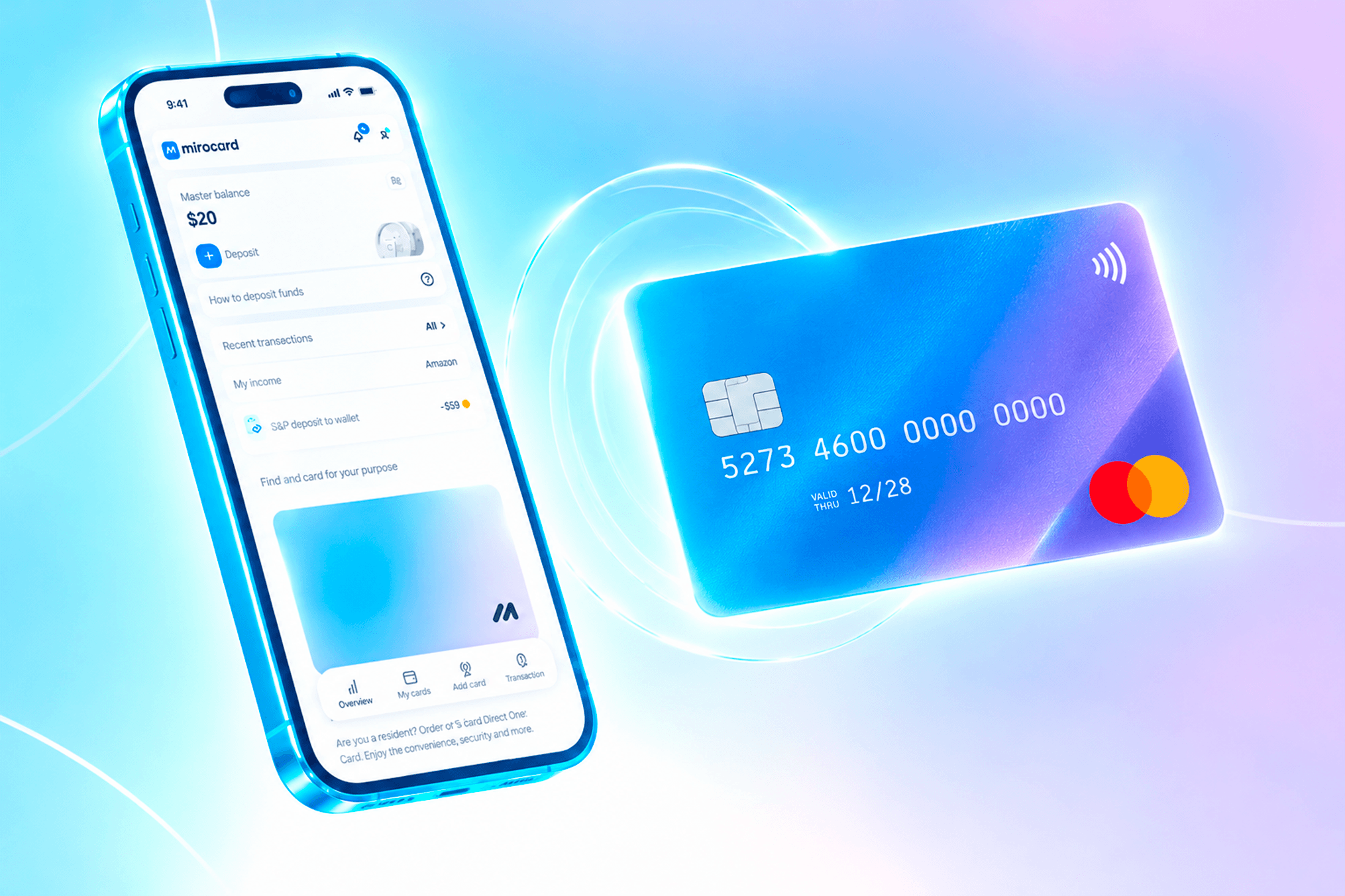
A Mirocard card is topped up with cryptocurrency directly from a wallet. BTC, ETH, USDT, USDC, TON, TRX, and SOL all work, and coins are converted into dollars inside the service. If you top up the card with a stablecoin, the balance doesn't depend on exchange-rate swings, and the monthly seat payment stays predictable.
Mirocard for paying for Figma
Mirocard creates virtual cards for paying for online services and other things. For Figma, a card for paying for subscriptions fits. It costs $5, and the top-up fee is 4%. The service charges money only from it, and your other funds stay out of its reach.
How to pay for Figma with Mirocard
First, issue a card. We covered sign-up, issuance, and the first top-up in detail in the guide to issuing a card. Once the details appear in your account and the balance is topped up, go to Figma. The card needs to hold the plan's price with a buffer for currency conversion.
Open the Figma pricing page. At the top are the product bar from Figma Design to Figma Buzz and a currency selector, and under them, four columns: "Starter," "Professional," "Organization," and "Enterprise." For a paid subscription, you need the Professional and Organization columns, since Starter is free and Enterprise has a "Contact sales" button instead of payment.
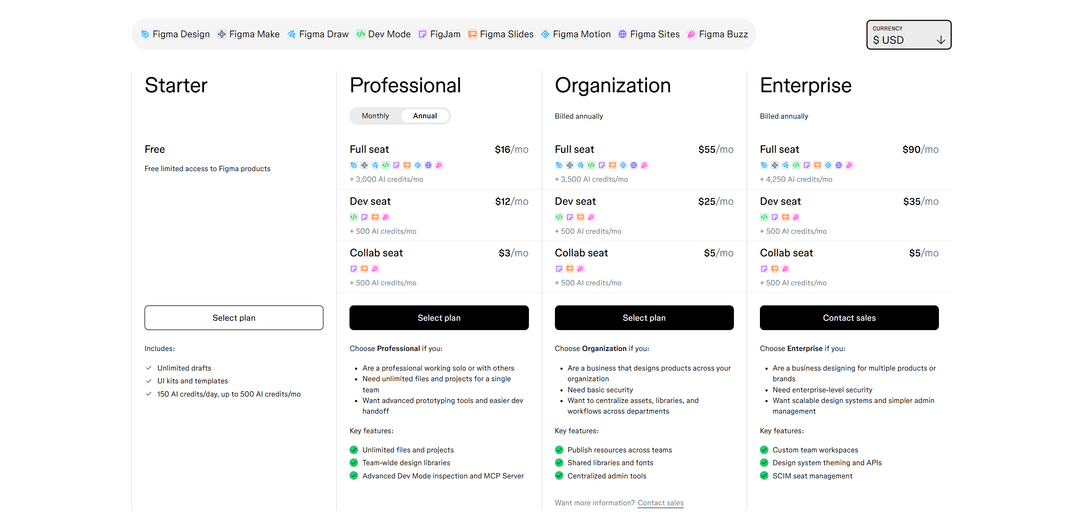
In the Professional column, first choose the billing period with the "Monthly" / "Annual" toggle. Annual is cheaper per month, while Monthly lets you avoid paying for a whole year at once. Then choose seats. If you work alone, take a "Full seat." A developer needs only a "Dev seat," and someone who just comments will do with a "Collab seat." In the Organization column, seats cost more, and payment is annual only.
Click the "Select plan" button under the plan you chose. The payment page opens, with a currency dropdown at the top. Check it before entering the card, since the final amount depends on it.
In the "Payment" block, enter the Mirocard's details. The number goes in the "Card number" field, the expiration month and year in "Expiration date," and the code on the back in "Security code."
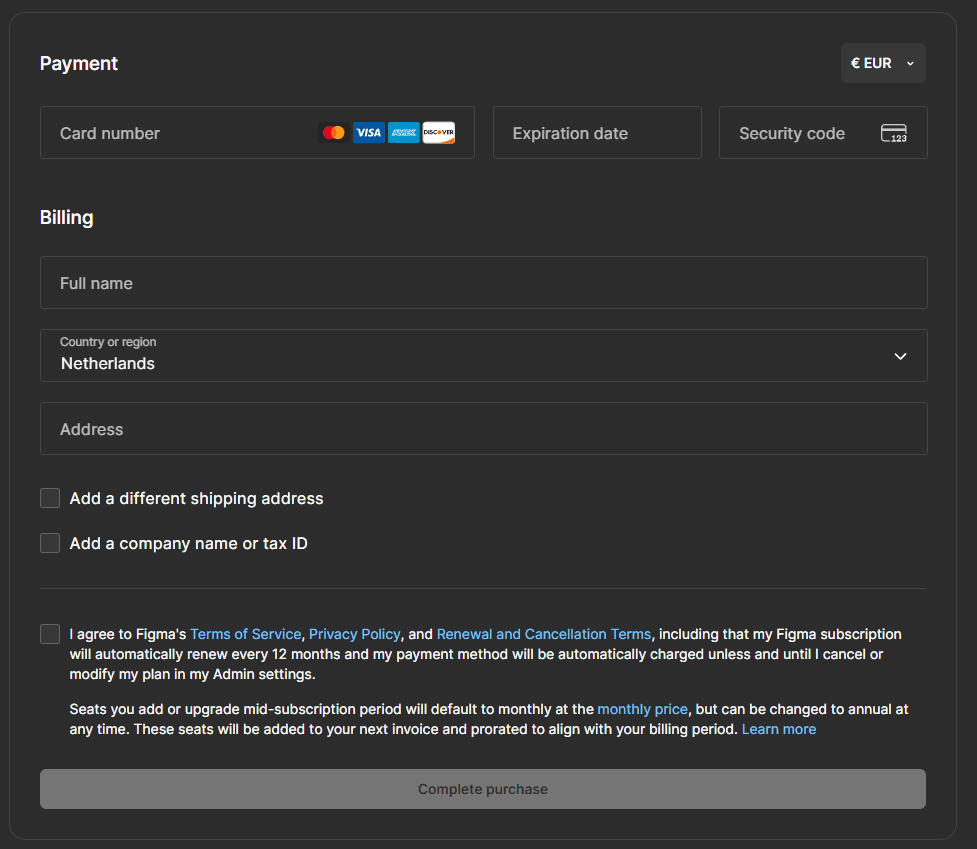
In the "Billing" block, enter your full name in the "Full name" field and choose "Country or region." Choose the country that matches the card's own details. In the "Address" field, enter the address. Check "Add a different shipping address" and "Add a company name or tax ID" only if you're signing up as a company.
Read the terms under the form and check the box agreeing to the rules. Then click "Complete purchase." If the bank asks for confirmation, enter the code from the message.
What to keep in mind with a Figma subscription
The subscription renews on its own, so the card needs to hold the amount before the charge date. For an annual plan, that's the whole annual price, and for a monthly plan, a month's price. If there isn't enough, the payment won't go through, so it's worth noting the renewal date in advance.
Seats are added separately and under different rules. The payment form says seats you add or upgrade in the middle of a period are by default priced at the monthly rate, and their cost is included proportionally in the nearest invoice. So spending can grow not only on renewal day.
Refunds for an already-paid period usually aren't given. If you change your mind, cancel the subscription in admin settings, and access stays until the end of the paid term. Separate terms apply to Organization. The annual term there can be canceled 30 days before its end by writing to support.
Conclusion
Figma counts money by seats, and that's convenient for paying with coins. A full seat costs $16 a month, so you don't need a large balance on the card. Top up Mirocard for the number of seats you need and add coins as the team grows.