How to Pay for Fishdom Purchases
Fishdom is a match-three puzzle game with an aquarium-sim layer, from the Playrix studio. You clear levels by matching rows of the same items, and the resources you earn go toward decorating your own aquarium — buying fish, decorations, and other decor. The game is built around thousands of levels of gradually increasing difficulty, regular events, and team activities, so a session rarely gets old after a couple of evenings.
Fishdom is available on iPhone, iPad, Android, and through the Microsoft Store. Playrix's official help center confirms that every match-three level can be completed entirely for free, without a single purchase — so trying the game out doesn't require spending anything at all.
What you can actually buy in Fishdom
The game itself is free, and money only comes into play for in-game purchases — in Fishdom, it's useful to split those into two layers. The first is the regular in-game currency, coins and diamonds, mostly earned just by playing, though you can also buy more of them through the shop if you don't want to wait. The second layer is what that currency gets spent on.
It's worth paying wherever you don't have the patience to wait for a resource to build up on its own — stuck on a hard level and don't want to spend a week grinding for rewards, or you just enjoy decorating your aquarium quickly. There's no required subscription in the game; every purchase is a one-off and optional.
Where the payment actually goes through
In-game purchases in Fishdom aren't processed by the game itself — they go through whichever app store it was installed from: the App Store, Google Play, Amazon Appstore, or Microsoft Store, depending on the device. Playrix confirms this directly in its help center — the studio doesn't process payments or store payment details, and the receipt after a purchase goes to the email linked to your app store account. The upshot: you add a card to your app store's payment profile on your device, not to the game itself.
iPhone and iPad
On Apple devices, your payment method is tied to your Apple ID, and you manage it through system settings, not through the game. Open the Settings app, tap your name at the top of the screen, go to "Payment & Shipping," and add a card there — you can also replace or remove it from the same place. The first time you add a card, your bank may briefly hold a small amount for verification; that's standard procedure, and the money is returned automatically.
Android
A virtual card for in-game purchases
A virtual card solves exactly the problem that trips up most players — it gives the app store a payment instrument with international details, with no need to open an account with a bank in another country. You can get one online in a few minutes, and to the App Store or Google Play, there's no difference between a virtual card and a regular plastic one — only the number, expiration date, and security code get checked. That's exactly why a virtual card usually turns out to be the fastest way to buy diamonds or coins when you don't already have a payment method on hand.
How Mirocard can help here
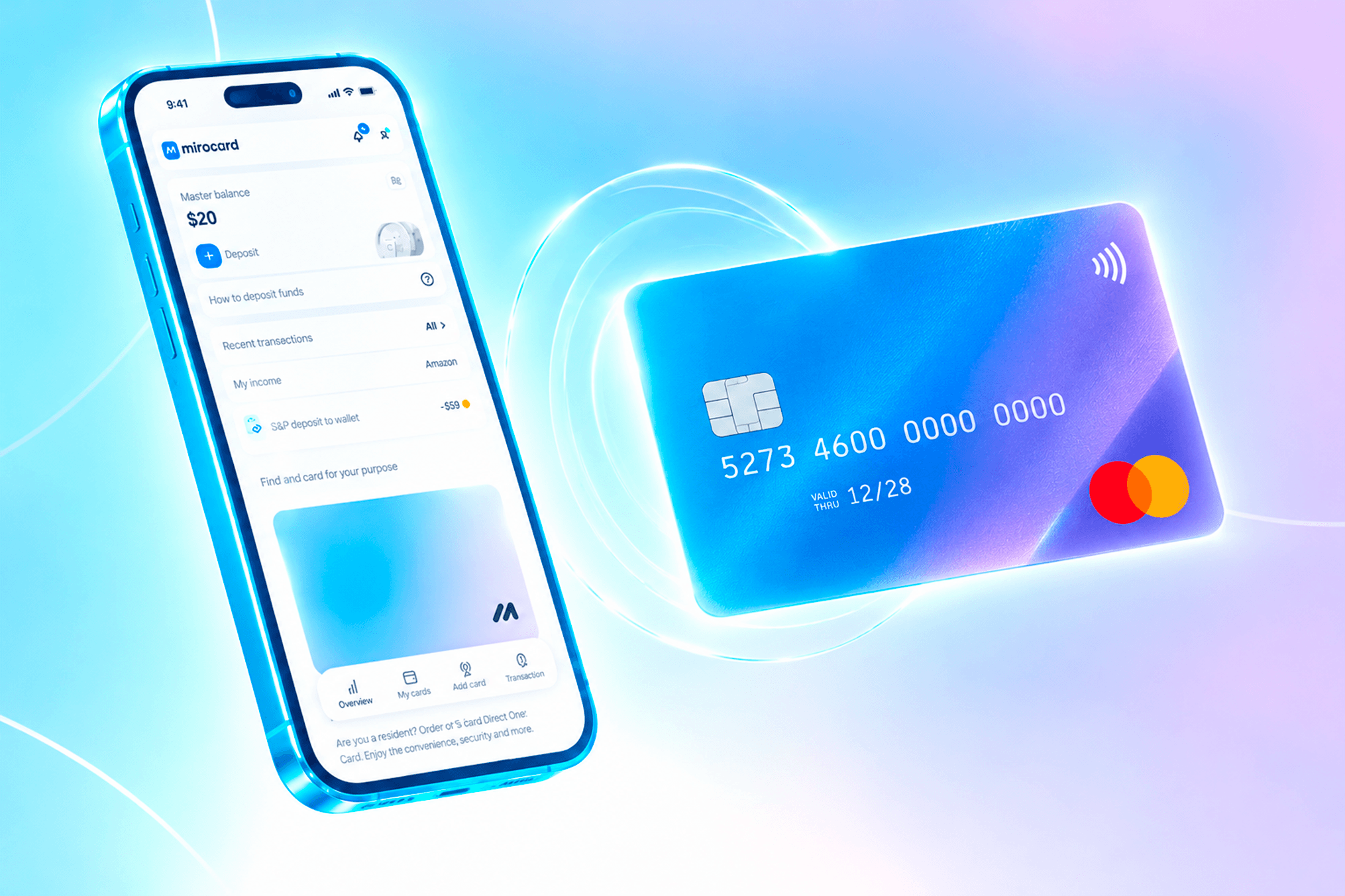
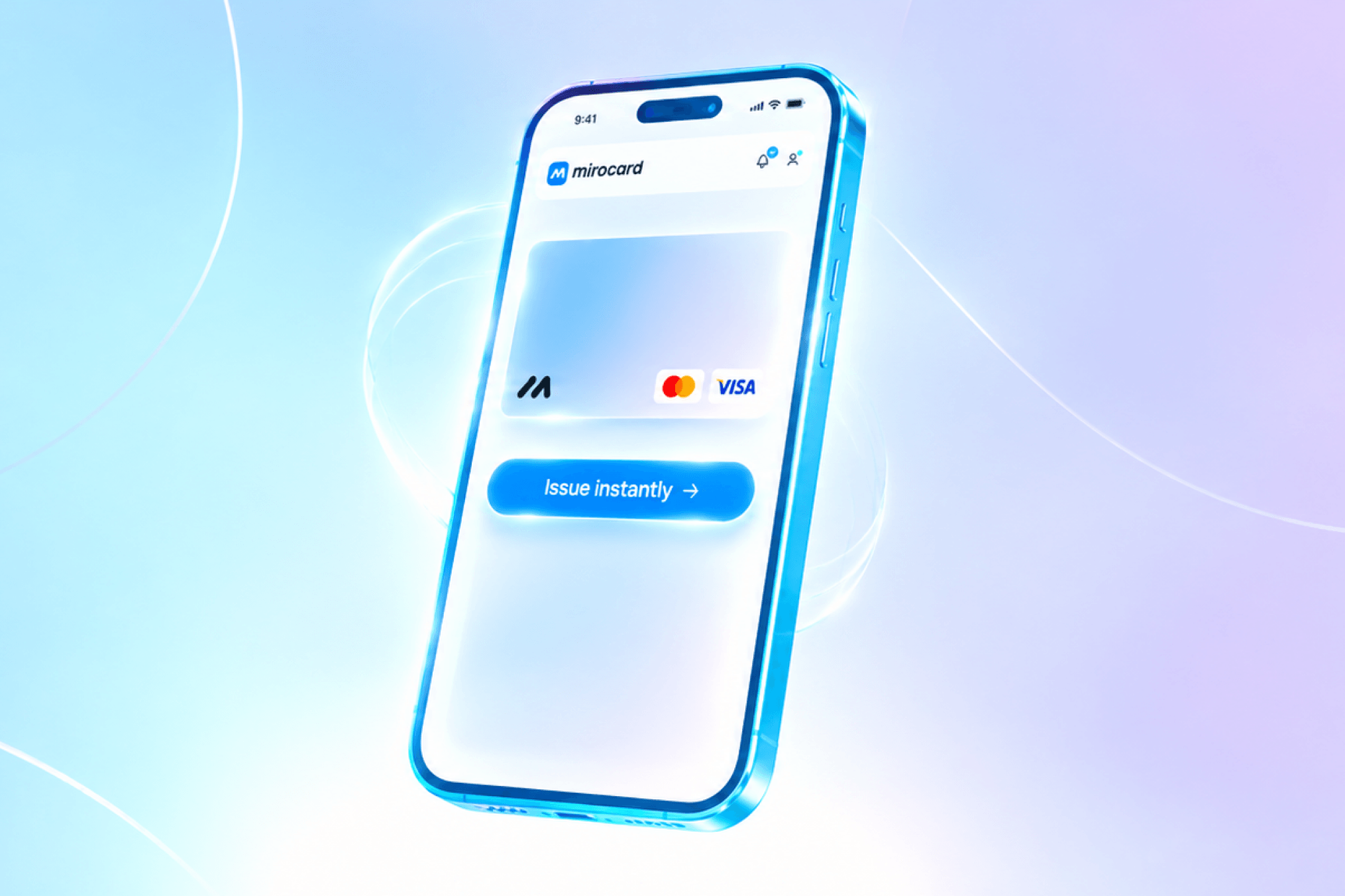
Mirocard issues virtual cards that are ready right away for purchases on the App Store and Google Play. For a crypto holder, it's the most direct way to spend wallet funds on in-game currency, without cashing out to fiat through a separate exchange first.
Getting set up takes a few simple steps and doesn't require any special knowledge. We covered the full process of issuing a Mirocard virtual card in this article.
How to try paying for a Fishdom purchase with Mirocard
Once the card is ready, the process in the game is the same no matter which payment instrument you use — the only difference is where you add the card on your device.
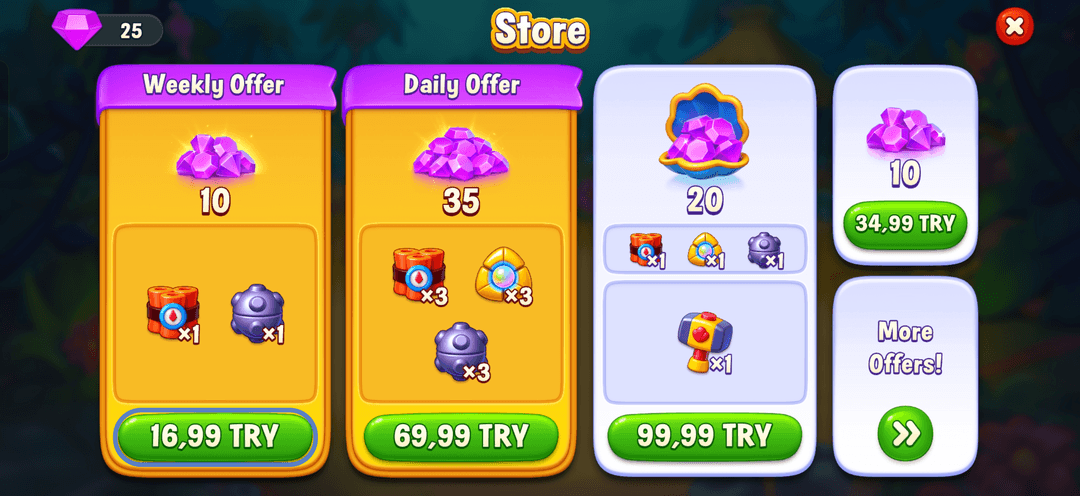
Open Fishdom on iOS or Android and go to the in-game shop — it's usually opened from the bag icon or the plus sign next to the diamond or coin counter on the main aquarium screen.
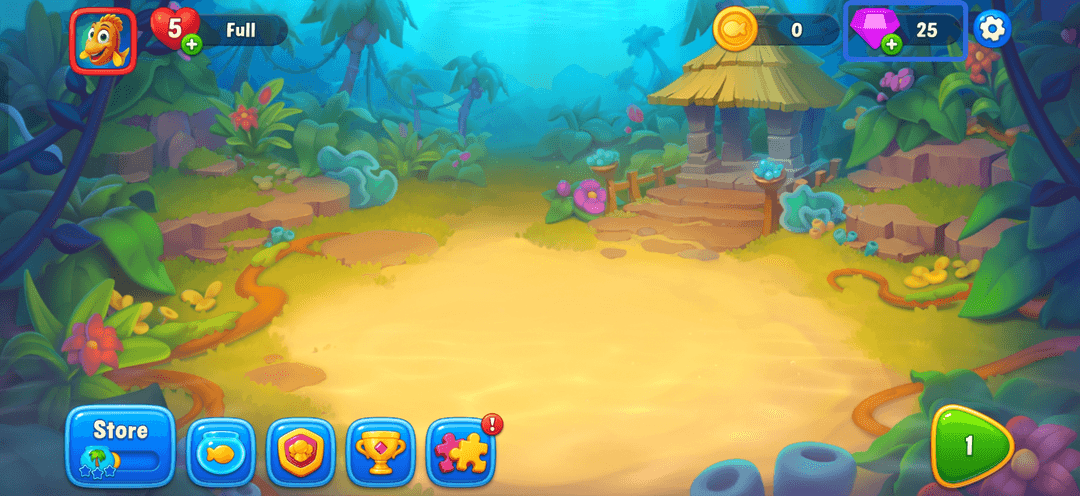
Pick the in-game currency you need and the right package — the purchase amount shows up right away in your app store's currency.
On iOS
-
The system opens the standard App Store purchase window. If your Apple ID doesn't have the Mirocard on file yet, open the Settings app, tap your name at the top of the screen, and under "Payment & Shipping" add the card with its number, expiration date, and security code.
-
Go back to the purchase in Fishdom and confirm the payment — the system will ask for Face ID, Touch ID, or your Apple ID password.
-
Once confirmed, the currency is credited right away, and the receipt goes to the email linked to your Apple ID.
On Android
-
Google Play shows a list of payment methods. If the Mirocard isn't on the list, tap "Add payment method," choose the bank card option, and enter the number, expiration date, and security code.
-
Check the order details on the confirmation screen and tap "Buy" to complete the purchase.
-
The currency is credited right after payment, and you can check your purchase history later under "Payments & subscriptions" in your Google account.
How to avoid spending more than you planned in the game
Keep only the amount you're willing to spend on the game on your virtual card — if the card isn't topped up beyond your plan, an accidental extra purchase simply won't go through. There's no need to keep a big buffer on it for convenience either — you can always spend the balance later on your next purchase, but getting money back once it's charged is harder than not spending it in the first place.
Before confirming any purchase, check the final price on the app store's screen, not just the in-game display — the amount at checkout in the App Store or Google Play is final and gets charged right away. The same habit protects against accidental purchases if a kid or someone else in the house gets hold of the phone — the confirmation screen with the price is the last chance to stop.
Conclusion
Paying for in-game purchases in Fishdom comes down not to the game itself, but to the payment instrument attached to the App Store or Google Play. A Mirocard virtual card funded with crypto solves that in a few minutes and works for topping up plenty of other online services too.