Як оплатити Suno AI Music
За генерацію музики в Suno відповідає нейромережа, яка перетворює текстовий опис на готову пісню. Вказуєте жанр, настрій чи тему — і за пару хвилин отримуєте композицію з вокалом, інструментальною частиною і текстом. У розширених налаштуваннях можна вручну вибудувати структуру треку, задати конкретний стиль звучання чи підставити власний текст пісні, а модель підбере під нього музику.
Сервісом користуються музиканти для швидких начерків ідей, блогери для фонових треків, маркетологи для рекламних роликів. Реєстрація вільна, а частина функцій доступна одразу — платити для знайомства із Suno не обов'язково.
Коли безкоштовного Suno стає недостатньо
Головне обмеження безкоштовного плану — права на музику. Треки, згенеровані на Free, не можна використовувати комерційно — викладати з монетизацією на YouTube, використовувати в рекламі чи продавати. Платна підписка потрібна саме тоді, коли музика виходить за межі особистого прослуховування — для каналу, проєкту клієнта чи комерційного релізу.
Які платні плани пропонує Suno
Обидва платні тарифи Suno можна оплачувати помісячно або одразу за рік зі знижкою — річна підписка дешевша в перерахунку на місяць. Різниця між Pro і Premier в обсязі кредитів, доступних інструментах і глибині редагування.
Pro
На Pro щомісяця нараховується 2500 кредитів — цього достатньо для кількох сотень треків на місяць за регулярної генерації. Тариф знімає обмеження безкоштовної моделі і відкриває останню версію нейромережі, дає право використовувати треки комерційно і ставить запити в пріоритетну чергу. Якщо ліміту не вистачило до кінця місяця, кредити можна докупити окремо. До цього додається просте розділення треку на доріжки і можливість завантажувати власні аудіофайли завдовжки до тридцяти хвилин.
Premier
На Premier зовсім інший масштаб — 10 000 кредитів щомісяця, у кілька разів більше, ніж на тарифі Pro. Ключова фішка тарифу — Suno Studio, повноцінна звукова робоча станція прямо в браузері з підтримкою MIDI, набором ефектів і автоматизацією параметрів, а стеми розбираються на доріжки ще детальніше. За обсягом можливостей план явно націлений на студії та авторів, які випускають треки потоково, а не час від часу.
Загальне правило для обох платних тарифів — базовий ліміт кредитів не накопичується з минулого місяця і просто зникає, якщо його не витратити. При виборі між Pro і Premier орієнтуйтеся не на заявлену кількість треків, а на цей нюанс згорання залишку.
Чим можна оплатити підписку
Suno приймає оплату банківською карткою через платіжний процесинг Stripe — на сторінці оформлення підписки доступні основні картки на кшталт Visa і Mastercard, а також Apple Pay і сервіс швидкої оплати Link. Прямої оплати криптовалютою на сайті немає, тож власнику крипти потрібен проміжний крок — перетворити кошти з гаманця на картку, яку прийме Stripe.
Віртуальна картка як варіант для Suno
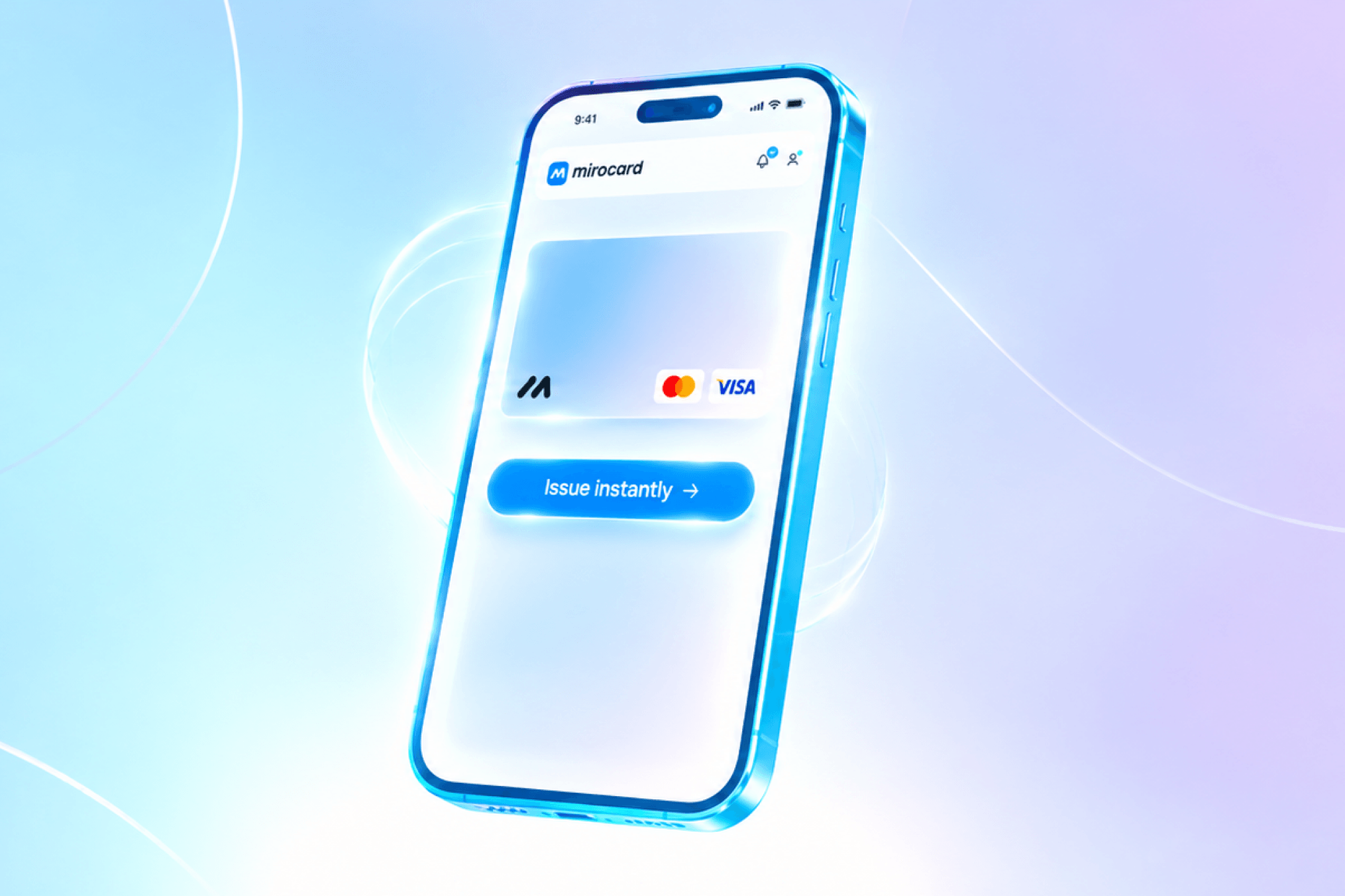
Для Stripe віртуальна картка з міжнародними реквізитами нічим не відрізняється від звичайної пластикової Visa чи Mastercard — процесинг бачить однаковий набір даних і однаково його перевіряє. Випуск займає кілька хвилин у режимі онлайн, банк і особистий візит для цього не потрібні, а окремий рахунок відкривати не доводиться.
Окремий плюс саме для Suno — підтримка автопродовження. Підписку Pro і Premier можна оформити зі збереженою карткою, і тоді Suno буде списувати оплату щомісяця чи щороку сама, без повторного заходу на сайт. Функція працює лише з карткою, прив'язаною до акаунта, тож віртуальна картка — найпростіший спосіб налаштувати оплату один раз і не повертатися до цього питання до кінця підписки.
Як може допомогти Mirocard
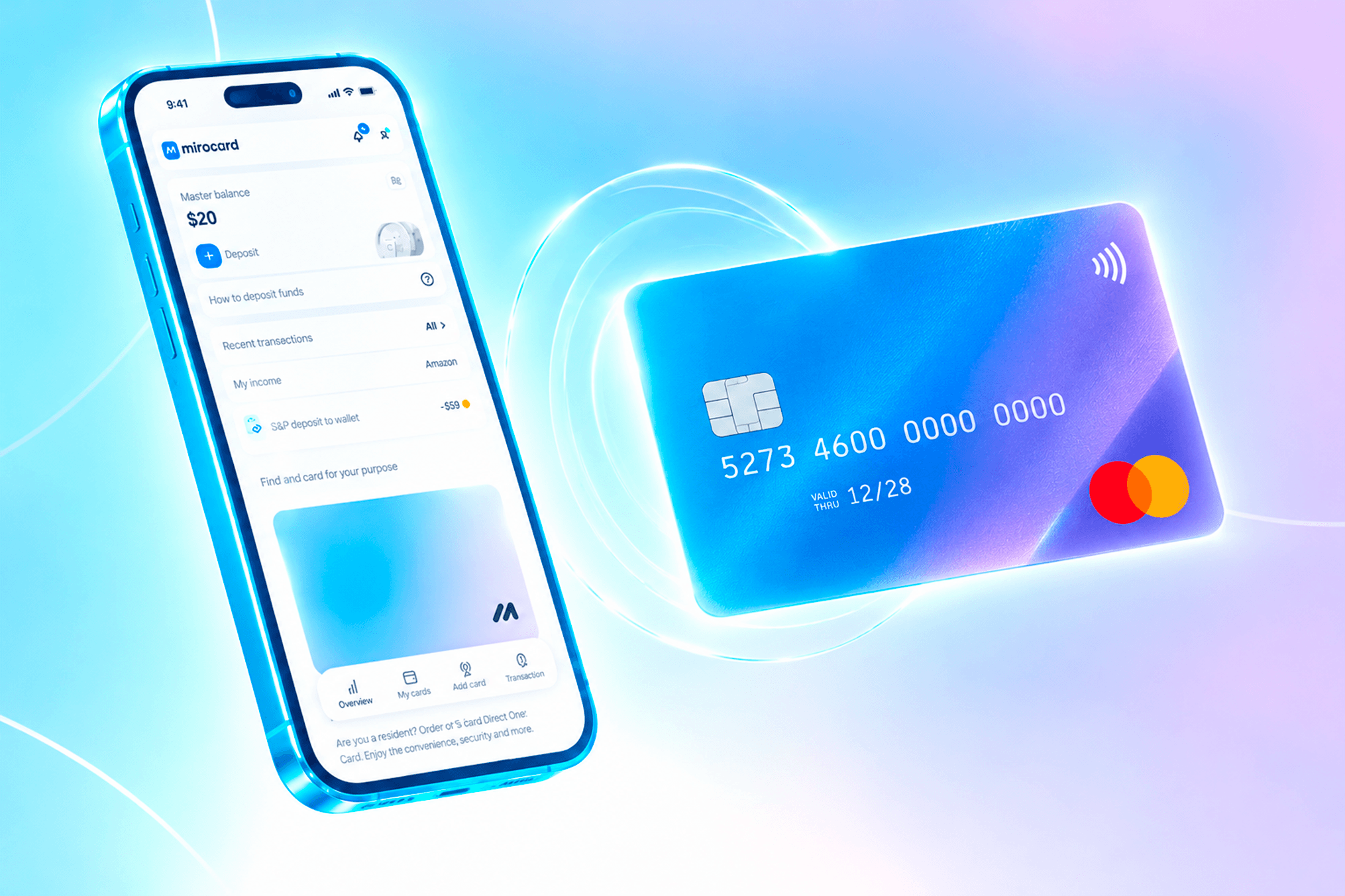
Свою віртуальну картку Mirocard робить під конкретну задачу — оплату регулярних сервісів, і Suno сюди чудово вписується. Картка працює як звичайний платіжний інструмент — з нею доступна і разова оплата, і автопродовження підписки. Власнику крипти не доводиться виводити актив у фіат через біржу окремим кроком — цей шлях Mirocard прибирає повністю. Картка для оплати підписок на кшталт Suno коштує 5 доларів, а комісія за поповнення самої картки становить 4%.
Для тих, хто шукає альтернативу особистому рахунку в банку іншої країни, Mirocard закриває те саме завдання без візиту у відділення і без тижнів очікування на верифікацію. Сам процес отримання картки простий і не вимагає технічної підготовки — з ним впорається будь-який користувач. Усі кроки випуску віртуальної картки Mirocard, від заявки до готових реквізитів, зібрані в окремій статті.
Оплата Suno криптовалютою через віртуальну картку — покроковий сценарій
Далі картка готова до оформлення підписки, а сам процес на Suno виглядає так.
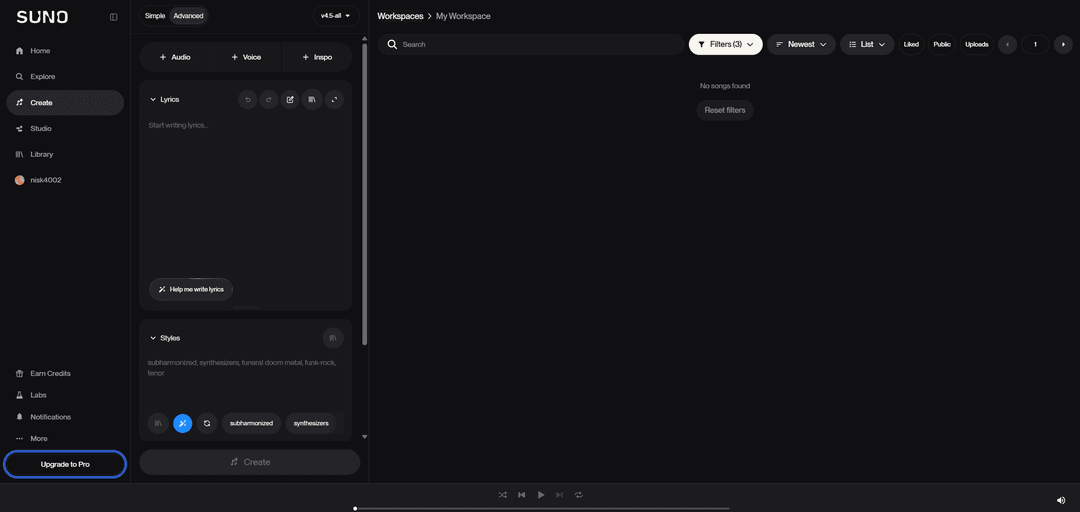
- Відкрийте Suno і в лівому нижньому куті натисніть кнопку «Upgrade to Pro» — вона відкриває сторінку з порівнянням тарифів.
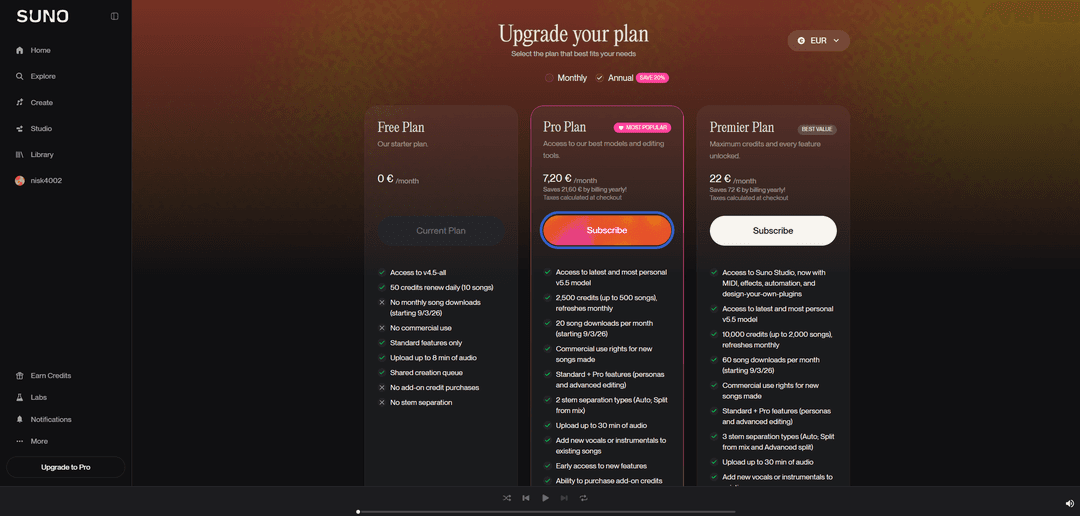
- На сторінці «Upgrade your plan» оберіть спосіб оплати — «Monthly» для помісячної підписки чи «Annual» для річної зі знижкою, — а потім натисніть кнопку «Subscribe» під потрібним тарифом, Pro чи Premier.
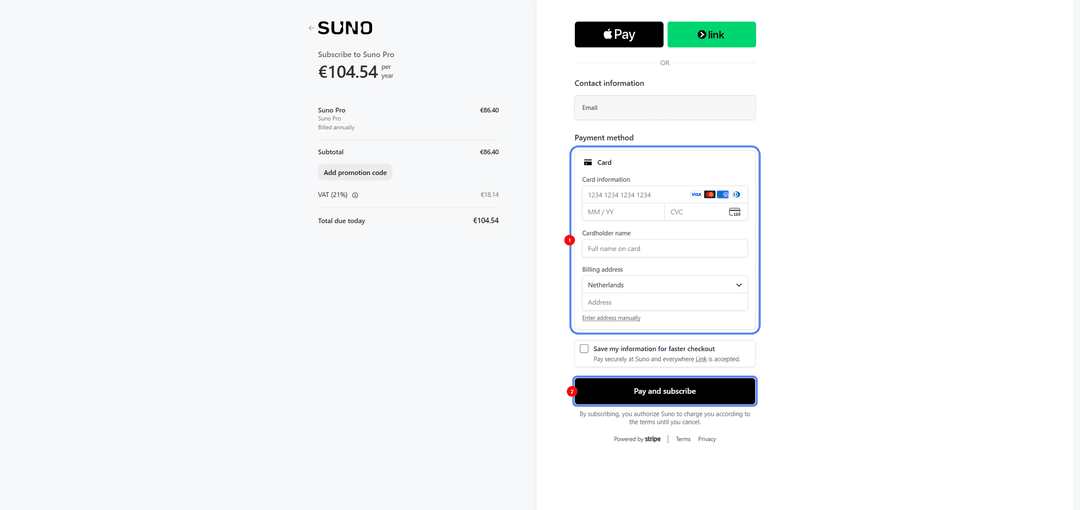
- Система відкриє сторінку оплати з назвою і вартістю підписки. Оберіть оплату карткою, а не Apple Pay чи Link, і вкажіть email для чека в полі «Contact information».
-
Введіть номер картки Mirocard, термін дії та код CVC у полі «Card information», далі впишіть ім'я власника картки в «Cardholder name».
-
У розділі «Billing address» оберіть країну і заповніть адресу — дані мають збігатися з тим, що вказано в профілі картки Mirocard, інакше платіж може бути відхилений.
-
Перевірте підсумкову суму і натисніть кнопку «Pay and subscribe» — підписка активується одразу після підтвердження оплати.
Що робити, якщо картку не приймають
Насамперед перевірте баланс картки — на ній має бути достатньо коштів не лише на саму підписку, а й на комісію за конвертацію, якщо платіж проходить в іншій валюті. Далі варто перевірити реквізити — номер картки, термін дії та код CVC потрібно вводити точно, без зайвих пробілів, а адреса в розділі Billing address має буква в букву збігатися з тим, що вказано в особистому кабінеті Mirocard.
Якщо реквізити правильні, а платіж усе одно відхиляється, причина може бути в обмеженні на міжнародні операції — уточніть в особистому кабінеті Mirocard, що ліміт на такі платежі не вичерпано і функція увімкнена. Коли жоден із цих кроків не допоміг, найшвидший спосіб розібратися — звернутися в підтримку Mirocard напряму й описати, на якому саме кроці оплати з'являється помилка, це прискорить вирішення проблеми.
Висновок
Оплата Suno впирається не в сам сервіс, а в платіжний інструмент. Для власника криптовалюти, і для користувача без картки міжнародного банку задача вирішується через віртуальну картку Mirocard за кілька хвилин. А після оплати Suno ви зможете так само користуватися віртуальною карткою для оплати інших онлайн-сервісів.