
How to Pay for WPS Office
WPS Office is an office suite for working with text documents, spreadsheets, presentations, and PDF files, which many people use as a replacement for Microsoft Office. The program is available on desktop, phone, and in the browser, and files sync across devices through built-in cloud storage. The document format is compatible with the familiar .docx, .xlsx, and .pptx, so switching from another office suite doesn't cost you any formatting.
What the paid version is for
The free WPS Standard version covers the basics — creating and editing documents, spreadsheets, and presentations, plus viewing PDFs, all work at no cost. On top of that you get a gigabyte of cloud storage, support for forty-seven file formats, and close to fifty interface languages — a rare case where an office suite's free tier doesn't feel stripped down.
The difference shows up once documents turn into PDFs and the work turns into a daily routine. The paid version unlocks full PDF editing and conversion instead of limited viewing, adds text recognition on scanned documents and e-signatures, removes ads from the interface, and increases cloud storage twentyfold. It also adds built-in AI tools for working with text — with a usage limit, but without needing to switch to a third-party service.
What WPS Office tiers are available
WPS Standard
The free tier doesn't require a card on file and works for one-off or occasional document work — basic text editor, spreadsheet, and presentation features, a free PDF reader, and a gigabyte of cloud storage. A limited number of templates are available to download, with the full library reserved for paid plans.
WPS Pro+
The main paid tier includes everything in Standard, plus full PDF editing and conversion, an unlimited template library, advanced text recognition, e-signatures, twenty gigabytes of cloud storage, no ads, and a basic set of AI tools with a usage limit. Billing runs annually, which works out noticeably cheaper per month than the monthly rate.
Sharing Plan
What to choose — free WPS Office or Pro+
The free version is enough if you only need PDFs for viewing and edit documents occasionally — a gigabyte of cloud storage and the basic toolset covers that workload comfortably. Paying starts to make sense once PDF becomes a working format rather than just something you read — conversion, scanned-text recognition, and e-signatures save real time exactly when those operations happen regularly rather than once in a while.
Ads are another signal in favor of Pro+. If banners between documents start genuinely getting in the way of focusing on work, rather than just being an occasional annoyance on the free tier, that's also a reason to move to the paid version.
Why paying for WPS Office with cryptocurrency can be tricky
WPS Office accepts card payment, PayPal, Google Pay, or Alipay, but not cryptocurrency directly — there's no direct Bitcoin or other coin payment option at checkout. Because of that, a crypto holder has to turn wallet funds into a familiar payment instrument first before setting up a subscription — crypto sitting on an exchange won't buy a subscription on its own.
How to pay for WPS Office with Mirocard
Mirocard issues a virtual Visa or Mastercard, accepted at WPS Office's checkout the same way as a regular foreign card — the platform has no separate check or restriction for it.
The card balance is topped up with cryptocurrency straight from your wallet — no exchange, no exchanger, and no intermediary handling the payment on your behalf. The funds become card balance within a few minutes and are ready right away to pay for the subscription.
Once the card is ready, set up your WPS Office subscription.
Go to the WPS Office pricing page and pick a plan — Standard, Pro+, or Sharing Plan — and next to Pro+ and Sharing Plan, select the billing period you want from the dropdown.
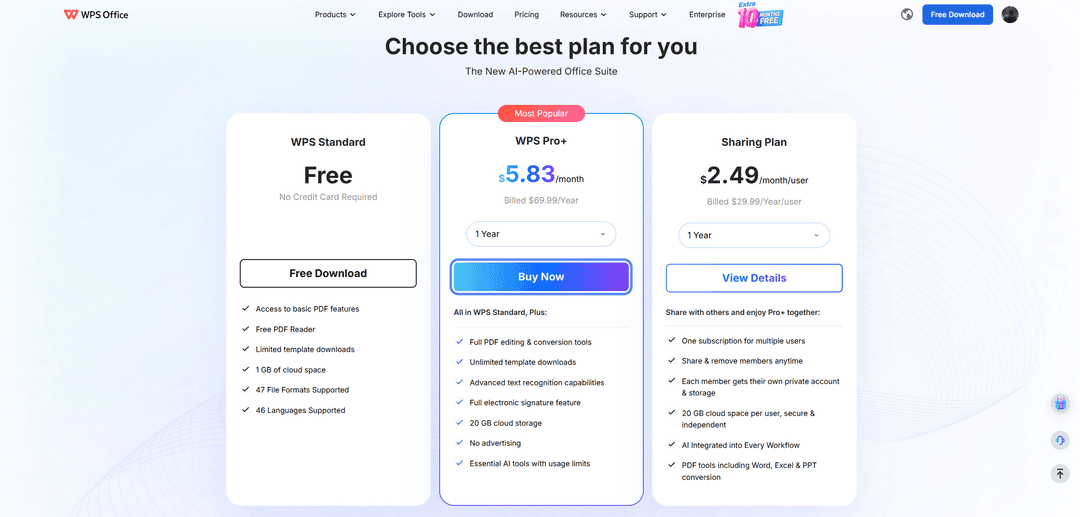
Click "Buy Now" under the Pro+ tier, or "View Details" under Sharing Plan, to move on to checkout.
Under "Payment Methods," choose the "Card" tab rather than PayPal, Google Pay, or Alipay.
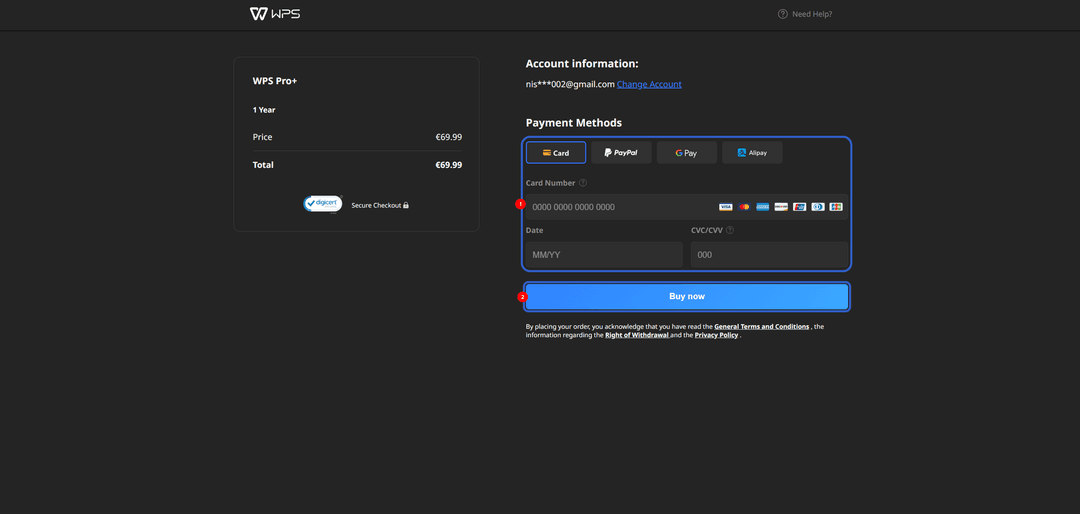
Enter the Mirocard's number, expiration date in MM/YY format, and CVC/CVV code in the corresponding fields.
Check the total in the "Total" section and click "Buy now" — the subscription activates right after the payment is confirmed.
What to keep in mind when paying for the subscription
WPS Office's subscription renews automatically from the linked card once the paid period ends, so you'd only lose access to Pro+ in one case — if a charge fails to go through. Keep enough balance on your Mirocard ahead of time rather than topping it up right on the renewal date — the charge can go through a day earlier than expected.
You can turn off auto-renewal, if you no longer need the tier, in your account settings on the WPS Office site — it's worth doing that ahead of time rather than at the last minute, to avoid an accidental charge for the next period.
Conclusion
Paying for WPS Office comes down not to the service itself, but to how you confirm the payment — a card the international payment system will accept. A Mirocard virtual card solves that in a few minutes, and from there the same card works for other services with a similar checkout too.