How to Pay for Dropbox
What paid tiers Dropbox offers
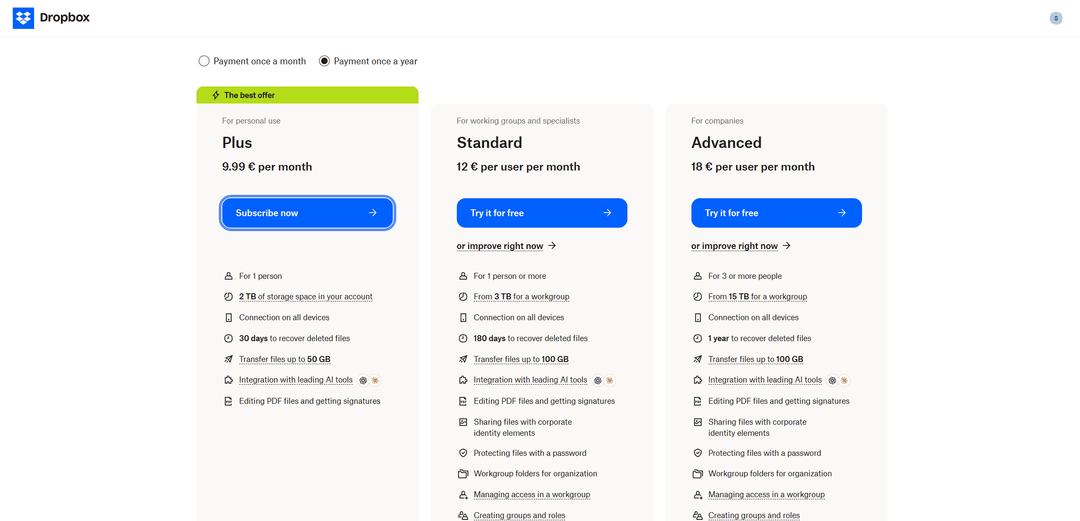
Dropbox has three categories of paid subscriptions, built for different scales of use. The Plus plan suits personal use by one person and gives two terabytes of space in your account, a month to recover deleted files, and file transfers up to fifty gigabytes at a time. The Standard tier is built for work teams and professionals — a minimum of three terabytes per group, six months to recover deleted files instead of one, plus tools for organizing access for several people at once, including team folders and role management. The Advanced tier is meant for companies and starts at fifteen terabytes of space per group, with deleted-file recovery extending to a full year.
How Dropbox billing works
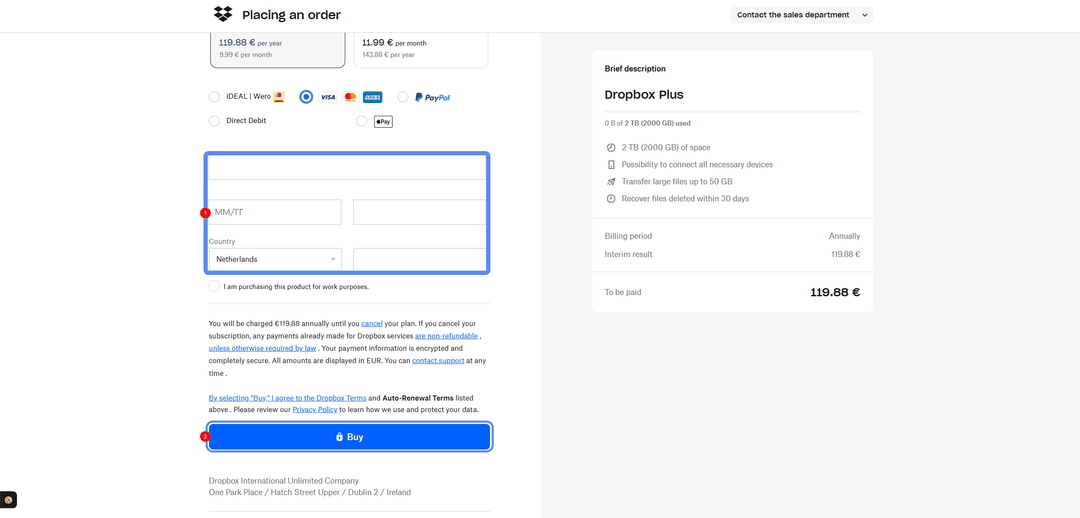
The subscription charges automatically on the billing cycle you pick — monthly or annually, with the annual rate working out noticeably cheaper per month. The checkout page supports several ways to confirm payment — a bank card, PayPal, Apple Pay, and in some regions local methods like direct debit — and the card form asks for the standard set of details: number, expiration date, security code, country, and the payer's postal code.
The subscription renews on its own once the paid period ends unless you cancel ahead of time — Dropbox states this directly in the terms on the checkout page, so the card linked to your account needs to stay working not just at the first payment, but at every renewal after that.
Why paying for Dropbox can be tricky
The reason is that Dropbox doesn't accept crypto payment through any of the options available at checkout — only a card, PayPal, or similar fiat instruments. Because of that, a crypto holder first has to turn wallet funds into a regular payment instrument before setting up a subscription, since the service has no direct way to charge a wallet.
Why a virtual card works well for a Dropbox subscription
Dropbox is one of those services people use for months or years at a stretch, not once and forget about, so its payment instrument needs to hold up to a series of regular charges rather than a one-off purchase. A card that handled the first payment but doesn't support repeat charges will cause a problem within a month — the subscription either cuts off with no warning, or your files get locked until payment goes through again. A virtual card built specifically for subscription services removes that risk from the start, since it works like a regular bank card for repeat charges rather than a one-off payment instrument.
Mirocard for paying for Dropbox
Mirocard issues a virtual Visa or Mastercard built specifically for this kind of task — paying for services like Dropbox, where what matters isn't a one-off transaction, but the card working reliably for the entire length of the subscription. The card details are no different from a regular bank card's — the number, expiration date, and security code go into Dropbox's payment form exactly the same way as any other international card, and the payment system sees no difference between a virtual card and one issued by a traditional bank with branches.
An added advantage is that you don't have to wait for the card in the mail or pick it up in person — the whole setup process happens online, and the details become available almost immediately after applying. That matters a lot for subscription services like Dropbox specifically, where the decision to go paid is often made quickly, when free space runs out unexpectedly in the middle of work, and there's simply no time to wait weeks for an account to open with a bank in another country.
The card balance is built straight from cryptocurrency in your wallet — no exchange, no exchanger, and no third party handling the payment for you. Funds become available on the card within a few minutes of the transfer and are ready right away to pay for the subscription.
How to pay for Dropbox with Mirocard
Once the card is ready, setting up a Dropbox subscription takes very little time.
Go to Dropbox's pricing page and decide on a plan — Plus for personal use, Standard for a work team, or Advanced for a company — and pick a billing cycle, monthly or annual at a discount. Next, click the button to select your tier, which will read "Subscribe now" for the ready-to-pay Plus plan or "Try it for free" for tiers with a trial period, and the system will move on to checkout.
On the checkout page, choose card payment — alongside the card, you'll usually see PayPal, Apple Pay, and local methods, but you want the icon with the Visa, Mastercard, and Amex logos. Enter the Mirocard's number, expiration date, and security code in the corresponding form fields, then below that, enter the country and postal code linked to the card in your Mirocard account — a mismatch with the card's actual details can get the payment declined at the check. Check the final amount due in the panel on the right, agree to the subscription terms, and finish checkout with the "Buy" button — access to the extra space and features of your chosen tier opens right after the payment is confirmed.
How much money to put on the card
It's worth topping up the card with a bit of a buffer rather than the exact tier price — the final charge amount is made up of the subscription cost itself, a currency conversion fee if one applies, and a small buffer for the verification hold banks sometimes place when a new card is linked for the first time. If you top up the card with exactly enough, the payment might fail because of those few extra cents on top of the listed tier price.
Before topping up, it's smart to check the current price directly in your own Dropbox account rather than going by numbers from someone else's article or screenshot — the subscription price can vary depending on country, the currency selected, and current promotions, and the difference between regions can sometimes be noticeable. Five minutes spent checking the exact amount before topping up saves you a second trip to your card account if the first top-up falls short of the final bill.
Conclusion
Paying for Dropbox comes down not to the service itself, but to which card the payment system will accept at authorization — a crypto holder needs a way to turn their asset into a familiar payment instrument. A Mirocard virtual card with support for repeat charges solves that, and once issued, you can use it not just for Dropbox, but for any other service with a similar recurring subscription.