How to Pay for Google Drive
Once the limit is used up, Google doesn't sell extra space as a separate product tied to one specific service — it bundles all its paid tiers under one name, Google One, which manages storage for all three services at once and adds its own extras on top, from expanded support to built-in AI. Below, we'll go through what's included in Google One's tiers, how the charge technically works, and what to do if the system won't accept a regular bank card.
What Google One tiers are available
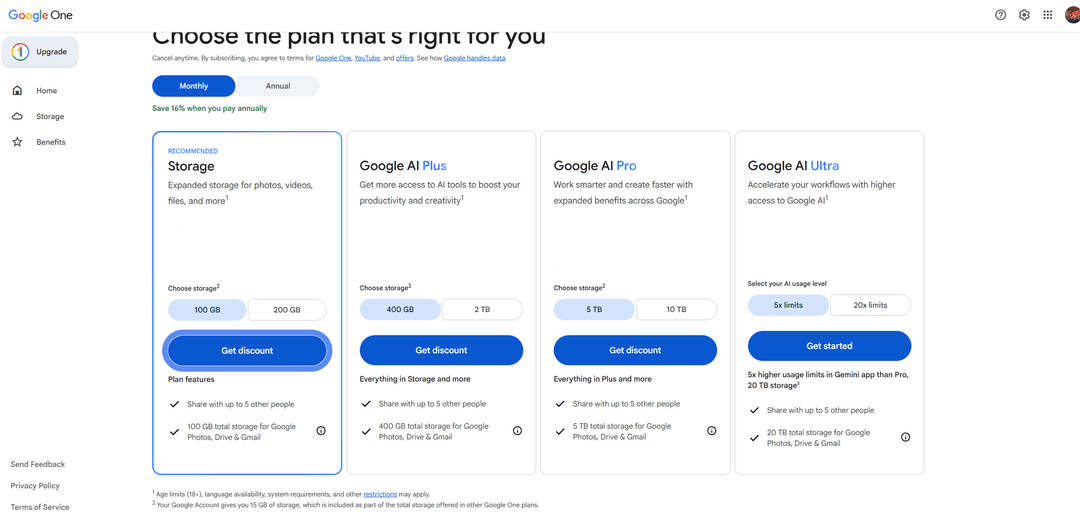
Google One has four tiers, and the difference between them isn't just gigabytes — a tier without AI and a tier with it essentially run on different rules.
The simplest tier, Storage, costs about $2 a month for 100 or 200 GB and adds nothing beyond space — no Gemini, no expanded limits.
Add AI to a comparable amount of storage, and the price jumps several times over — Google AI Plus, with up to 2 TB of space, costs around $8, because along with storage you get access to Gemini with a daily request limit and short videos.
Google AI Pro goes up to 5 TB, and in some countries 10 TB, for around $20, and the AI request limit is essentially lifted.
The top tier, Google AI Ultra, starts at $100 for 20 TB and multiples of the usage limits, and the most expensive version is built for anyone who keeps Google's AI tools running all day.
How extra space on Google Drive is billed
Technically, Google One is an ordinary subscription — you link a card once, and the tier's price then charges automatically every month or year until the plan is canceled manually, with space added almost immediately after a successful payment.
The key detail here isn't the auto-charging itself, but how Google checks the payment before letting it through. The system cross-checks three things at once — the card's country, the account's payment profile country, and the region Google determines from your actual connection — and the charge only goes through if all three match.
That check works the same way for any card regardless of the issuing bank — what matters isn't who issued it, but whether the regions line up with each other. The accepted payment methods are limited to Visa and Mastercard, a few countries' local payment systems, and a Google Play balance.
Why paying for Google Drive with cryptocurrency isn't simple
For a crypto holder, the root of the problem is different, but the result is similar — an unnecessary middleman shows up where there shouldn't be one. Google doesn't bill any of its subscriptions in cryptocurrency at all, so a BTC or USDT balance is useless on its own at the payment page.
To turn it into money Google will accept, you first need to sell the crypto on an exchange, go through identity verification there, wait for the funds to withdraw to a bank account, and pay a couple of fees along the way — for the conversion and for the withdrawal itself. Even the card you end up with needs to match Google's payment profile by country, which rules out cards issued by exchanges in jurisdictions Google's billing doesn't recognize. A subscription payment that should take two minutes turns into a chain of several services, none of which would be needed if Google accepted crypto directly.
Mirocard's virtual card for paying for Google Drive
Mirocard solves exactly this mismatch — it issues virtual Visa and Mastercard cards that Google sees as an ordinary bank card from any other country, regardless of where the cardholder is physically paying from. A card for paying subscriptions costs $5, is set up entirely online in your account within a few minutes, and doesn't require a bank visit or paperwork.
For a crypto holder, the same card removes the exchange and identity verification from the equation completely — the balance is topped up directly from a wallet in BTC, ETH, USDT, USDC, TON, TRX, or SOL, conversion happens inside Mirocard itself, and the money goes from the wallet straight to the card, skipping any intermediate bank account.
How to pay for Google Drive with Mirocard
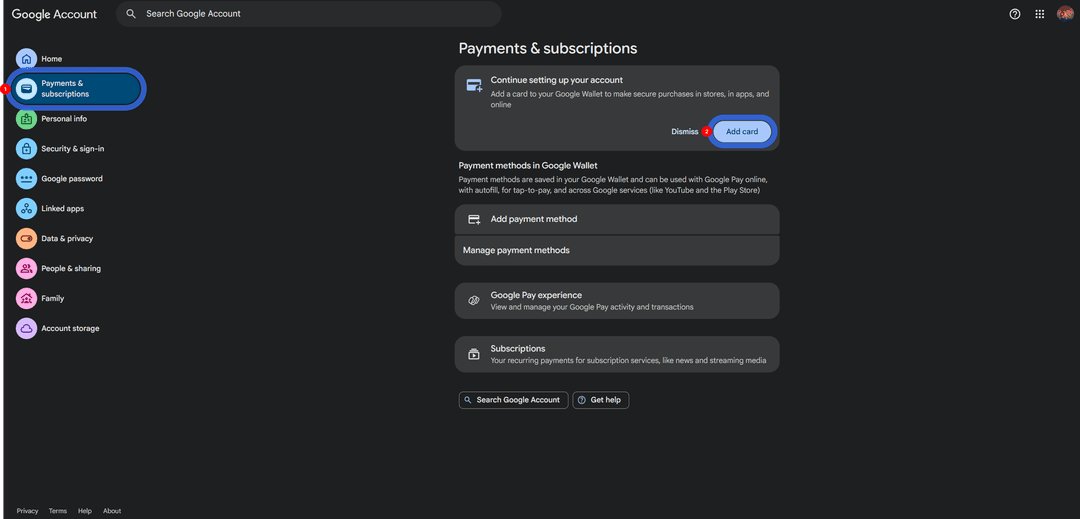
The whole process splits into two parts — what happens in your Mirocard account and what happens in your Google account — and it's worth keeping the two separate. Start with Mirocard — sign up, issue a card for paying subscriptions, and top up the balance, after which your account shows the card number, expiration date, and CVV code (a detailed breakdown of issuing the card itself is in a separate guide).
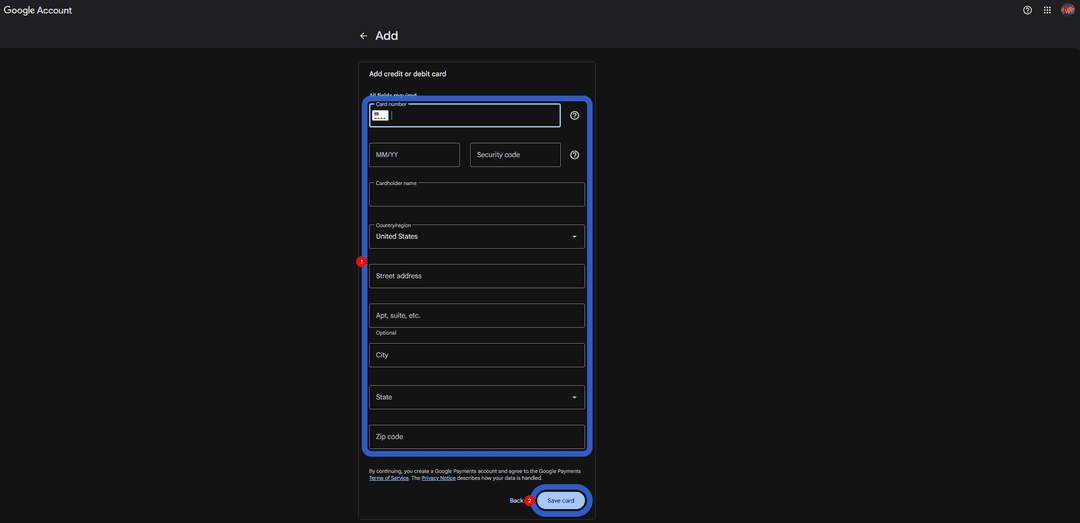
In the form that opens, enter the card number, expiration date, the code on the back, the cardholder's name in Latin letters — exactly as it appears in your Mirocard account — and any real mailing address, without which the payment profile won't save. The "Save card" button adds the card to your list of payment methods.
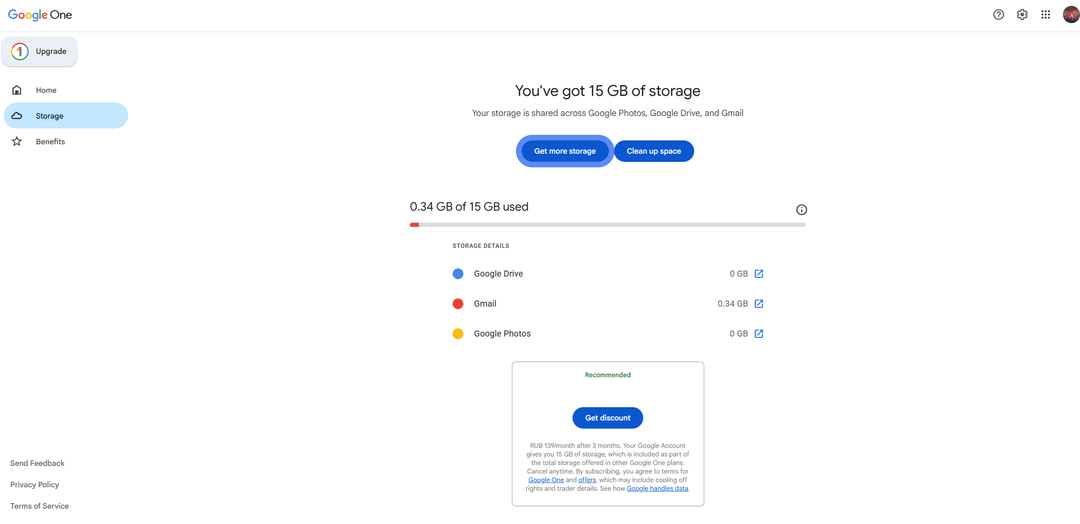
All that's left now is the last step — go to the Google One payment page and click "Get more storage."
Pick a tier and the amount of storage you want. Then click "Get discount." You'll move to the payment form, and all that's left is confirming the charge to the card you linked to your account earlier.
The charge goes through right away, and the storage becomes available within a few minutes — there's no confirmation email to wait for.
What to choose — monthly or annual billing
Annual billing from Google is almost always cheaper than twelve separate monthly payments — the savings usually work out to 15-20% per month, and from a pure numbers standpoint the choice is obvious.
For anyone funding their card with cryptocurrency, the difference lies elsewhere — an annual payment means converting a large sum at one specific day's exchange rate, while monthly billing spreads the same total across twelve smaller conversions and smooths out rate fluctuations along the way.
If you're not sure the tier you picked will actually be enough, it makes more sense to test it on monthly billing for a month or two before switching to annual — the overpay for a trial period is smaller than the cost of getting the storage amount wrong for a whole year.
Conclusion
Paying for Google Drive can run into trouble if you don't have a suitable card on hand, or if your money simply isn't in fiat currency to begin with. Mirocard solves that, taking the difficulty out of paying for your services. And once the card is linked, Google One just runs on the tier you picked — there's no need to revisit the payment question again until you decide to upgrade.