How to Pay for OVHcloud with Cryptocurrency
OVHcloud is a European provider where you can rent a virtual or dedicated server, deploy cloud infrastructure, register a domain, and set up hosting with email. All of it is paid for from one customer account, and invoices are issued regularly.
For servers, stable payment matters more than for most services. If an app subscription doesn't renew, you lose access to features, but if a server payment fails, a live website, a database, or a working project is at risk.
Below, we'll look at what exactly you can pay for on OVHcloud, which payment methods are available, why it's worth setting up a separate virtual card for servers, and how to place an order through Mirocard step by step.
What you can pay for on OVHcloud
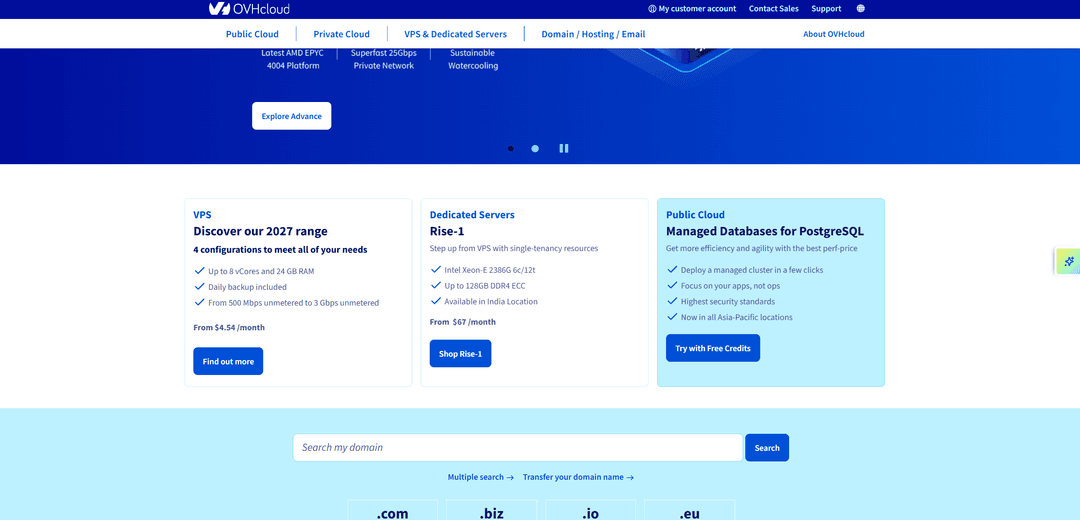
The catalog on the site is split by product type, and each has its own logic. VPS virtual servers suit small projects. The page lists configurations of up to 8 vCores and 24 GB of RAM, daily backups are included in the price, and the cost starts at $4.54 a month.
Dedicated servers are chosen when a VPS no longer has enough power. The Rise-1 model runs on an Intel Xeon-E 2386G processor and supports up to 128 GB of DDR4 ECC memory, and the resources belong entirely to you, with no neighbors on the physical server.
For cloud tasks, there's Public Cloud, for example managed PostgreSQL databases that spin up in a few clicks. A separate section covers domains, hosting, and email, and that's also where the search for an available domain name lives.
What payment options are available
OVHcloud accepts Visa, Mastercard, and Maestro cards, PayPal, SEPA direct debit, bank transfer, and a prepaid account. None of these methods works directly with cryptocurrency, so savings in coins need to be turned into card balance before you place an order.
A bank card
An ordinary bank card holds money in fiat currency, so every monthly server invoice has to be prepared in advance by selling coins on an exchange and withdrawing them to a bank account. For infrastructure where the payment repeats every month, that loop turns into permanent routine.
A virtual card
A virtual card is issued online in a few minutes and works in the payment form like a regular one. Its details and country are entered the same way as for a bank card, and the service sees no difference between them.
For servers, a virtual card has one more advantage. Hosting invoices repeat and sometimes change, so it's convenient to have an instrument whose balance you top up yourself for a specific amount, rather than leaving access to your main account open.
A separate virtual card for OVHcloud expenses
A separate card for infrastructure turns server costs into their own budget line. Every OVHcloud invoice will run through one card, and reconciling your statement with the invoices in your account is easier than hunting for the right charges among purchases and subscriptions.
The second advantage is security. The card details are stored in the provider's account, and if they ever end up in the wrong hands, only the amount on that card is affected, not your whole budget and not your other services.
The third advantage is planning. The card's balance shows how much money you've set aside for infrastructure in advance, which is handy when a project grows and invoices get larger.
Mirocard for paying for OVHcloud
Mirocard issues virtual Visa and Mastercard cards that can pay for servers, cloud services, and other international subscriptions. Setup happens entirely online, with no bank visit and no paperwork, and the details appear in your account right after issuance.
For server costs, a card built for paying for services fits. It costs $5, and a detailed walkthrough of sign-up and issuance is in a separate Mirocard article, so here we'll stick to what matters for OVHcloud.
The card's balance is topped up directly from a crypto wallet in BTC, ETH, USDT, USDC, TON, TRX, or SOL. Coins are converted into dollars inside Mirocard, and the server invoice is paid with no exchange trade.
So you don't have to guess how much to send to the card, enter the amount you need on the transfer screen and look at the total. The top-up fee is shown there before you confirm, which means the amount on the card will equal what you planned for.
How to pay for OVHcloud through Mirocard
It's worth choosing between products based on the task. A VPS suits a website, a bot, or a test environment, since it offers up to 8 vCores and 24 GB of memory, with daily backups. A dedicated server like the Rise-1 is for heavily loaded projects where constant resources matter. Public Cloud is the choice when you need a managed database or flexible cloud infrastructure.
On the product card, click "Find out more" for a VPS or "Shop Rise-1" for a dedicated server, and the "Configure your server" page opens. First, pick a region in the "Europe," "North America," or "Asia/Oceania" tabs. The site warns that bandwidth and traffic depend on the region, and the region card shows the server's delivery time.
Next, choose the processor, memory, disks, and network bandwidth. In the Rise-1 example, 32 GB of memory and two 512 GB disks are already included in the price, and other memory sizes are ordered through a consultant. Before choosing an operating system, open the "List of compatible operating systems" link and make sure the one you need is supported.
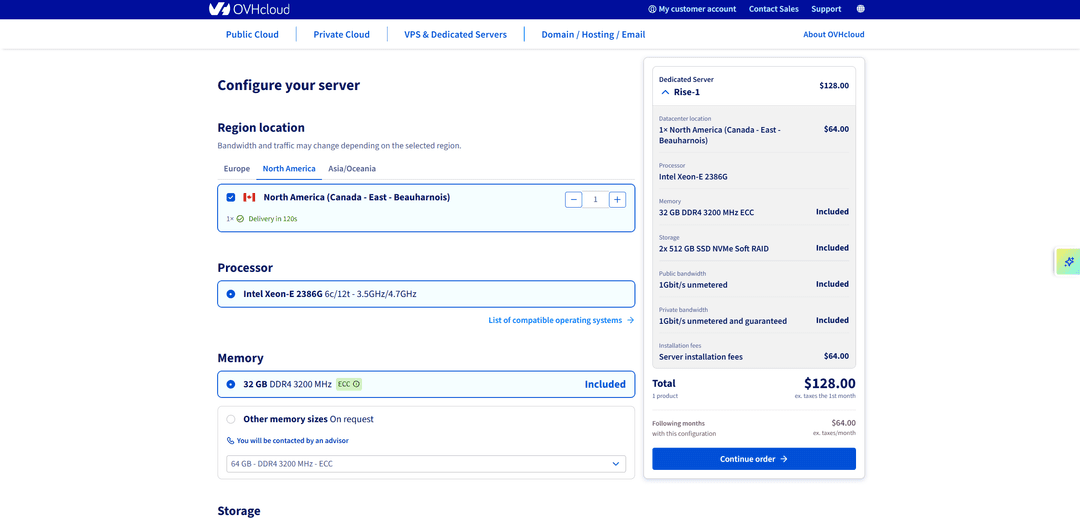
On the right, in the order block, check the total. It shows the first month's cost and the fee for the following months separately, with taxes listed separately. If everything's right, click "Continue order."
Next, the site will ask you to sign in and enter payment details. On the payment screen, enter the Mirocard virtual card's number, expiration date, and security code. For the country in the payment details, choose the one that matches the card's own details, not your place of residence, and confirm the order.
How to keep OVHcloud spending under control
The card settles the payment question, but it doesn't control the cost of the infrastructure by itself. You have to track spending yourself, and the place to start is reading the order total, since the first amount often differs from the rest.
In the screenshot with the Rise-1 configuration, that's easy to see. The first payment is $128, because it includes a one-time server setup fee, while only $64 is charged in the following months. Both figures are listed before tax, so the card should hold a bit more.
Before every renewal, open the control panel and check the service status and invoices. It's best to do this about a week before the charge date, so you have time to top up the card if the amount changed because of tax, region, or additional options.
After payment, compare the payment history in your account with the card statement and download the invoices. For cloud products where spending can depend on usage, check the pricing scheme of the specific service in advance, and don't keep more on the card than you're prepared to spend in a month.
Conclusion
A server doesn't forgive missed payments, which is why the main criterion when choosing how to pay for OVHcloud isn't the convenience of the first order but uninterrupted operation. A project's downtime costs more than any fee, and a failed charge leads to exactly that.
Mirocard provides a separate card for this, one you manage yourself and top up in advance. The order is placed once in the form on the site, and after that, all that's left is making sure the right amount is on the card by the charge date.