How to Pay for Xbox with Cryptocurrency
Xbox is Microsoft's gaming ecosystem, running on console, PC, and in the cloud through the same store and the same account. A purchased game, a subscription you've set up, or an add-on pack stay tied to the account, not to a specific device, so the payment question comes up once, not with every new purchase.
The catch is that the Xbox store accepts far from any card — the payment form is tied to the account's region and to the card's own details, and when any of that doesn't match, the purchase fails no matter how much money is on the balance.
Below, we'll look at what you can actually buy on Xbox, which workarounds exist — from a gift code to a virtual card — and how to cover both a one-off purchase and a subscription through Mirocard.
What you can pay for on Xbox
A subscription, primarily Game Pass, charges regularly, usually monthly, and opens access to a library of hundreds of games rather than one specific title. Additional content — packs, season passes, in-game currency — works technically like the same one-off purchase, just tied not to the game itself but to a part of it.
For a one-off purchase, you need the card once, while for a subscription, you need it for every renewal cycle, and that difference matters when picking a payment method.
Buying games with a gift code
A gift code is a way to pay for a game or top up your account balance without entering card details into the Xbox store itself. You buy the code in advance from a third-party seller, and it's only redeemed in your account — the store's payment form doesn't take part in this setup at all.
Codes differ by denomination and by region — a code for one region won't redeem on an account tied to another, so when buying, it's important to check the code's region against your profile's region ahead of time, not after paying the seller. It's a convenient option for a one-off purchase, but for a subscription with regular renewal, you have to buy a new code before every cycle instead of once.
A bank card
A bank card links to Xbox with no problem, but the money on it sits in regular currency, not crypto. To spend savings in BTC or USDT, you first have to sell them on an exchange and withdraw to a bank account.
That means separate fees, waiting for transfers, and needing the account itself, which doesn't open in a day.
A virtual card for Xbox
A virtual card can be topped up straight from a crypto wallet, without selling coins on an exchange or withdrawing money to a bank account. Savings in BTC, ETH, USDT, and other supported coins turn into card balance inside the service itself. You enter its details into Xbox's payment form the same way as any regular card's details.
Issuing a card like this requires neither a bank visit nor an account in the specific country it's registered for, so you can get one entirely online, unlike the bank card from the previous section.
Mirocard — a service for paying for Xbox
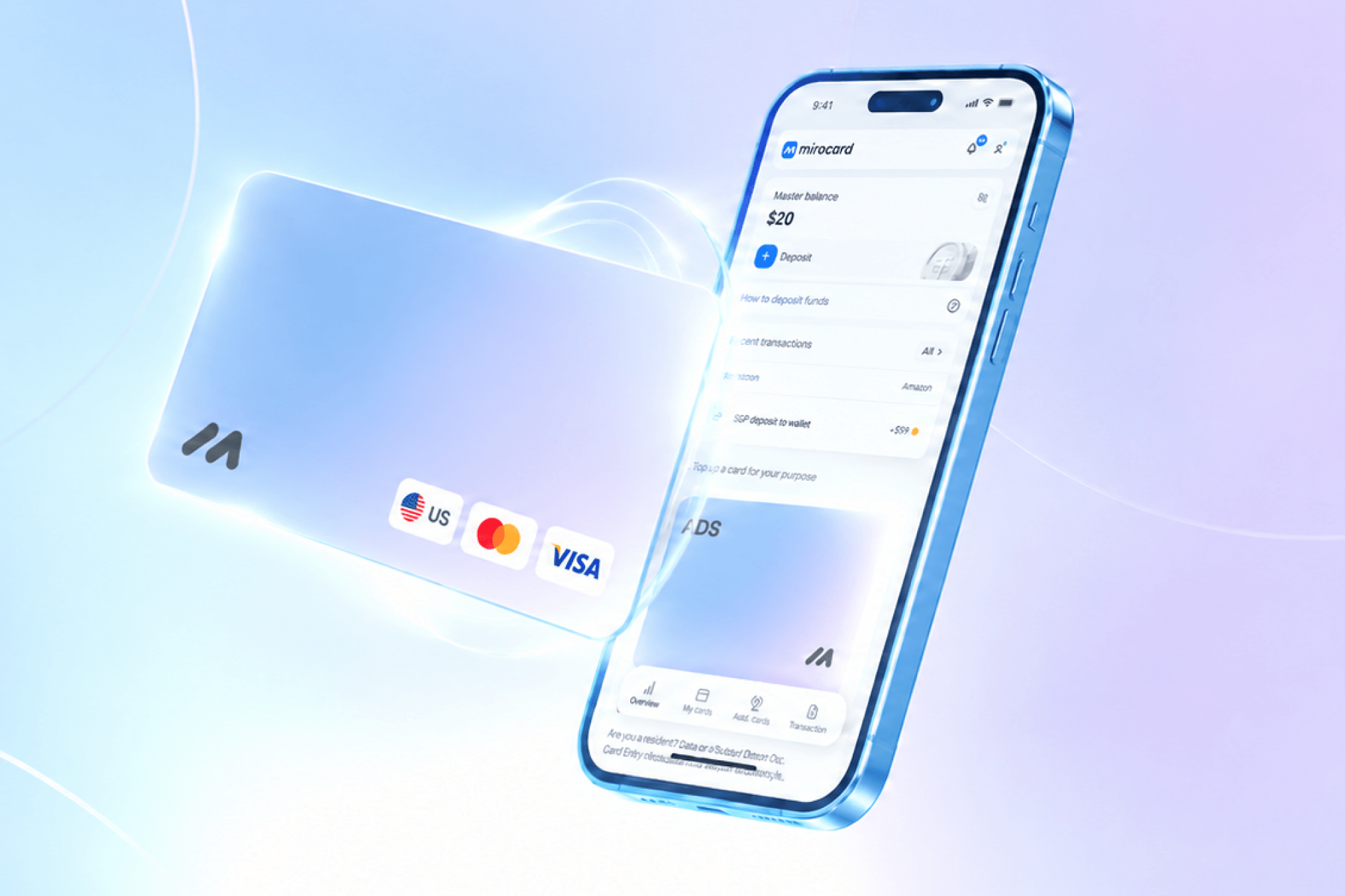
Mirocard issues virtual Visa and Mastercard cards like this — set up entirely in your account, with no bank visit and no paperwork. For purchases in the Xbox Store, the simplest card is usually enough, one that works for both games and subscriptions.
The setup process itself — what you enter at sign-up and how the account is confirmed — is covered in detail in a separate guide to issuing a Mirocard virtual card, so here we'll stick to what applies specifically to Xbox. The card costs $5 and is ready to use right after issuance.
This same type of card is also topped up straight from a wallet — BTC, ETH, USDT, USDC, TON, TRX, or SOL are converted to dollars inside Mirocard itself, skipping the exchange and exchangers, and from there the balance is used in Xbox's form like money from any other card.
Linking the card to Xbox looks the same as in the screenshot example — on the page of the item or subscription you want in the Xbox store, click "Buy" or "Choose edition."
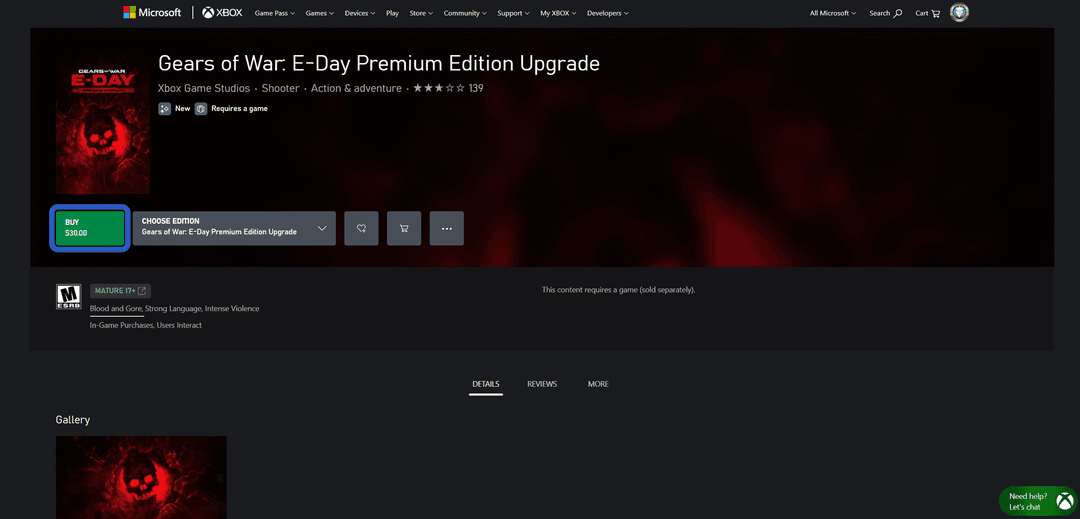
If no payment method has been added yet, the store opens an "Add a credit card or debit card" form.
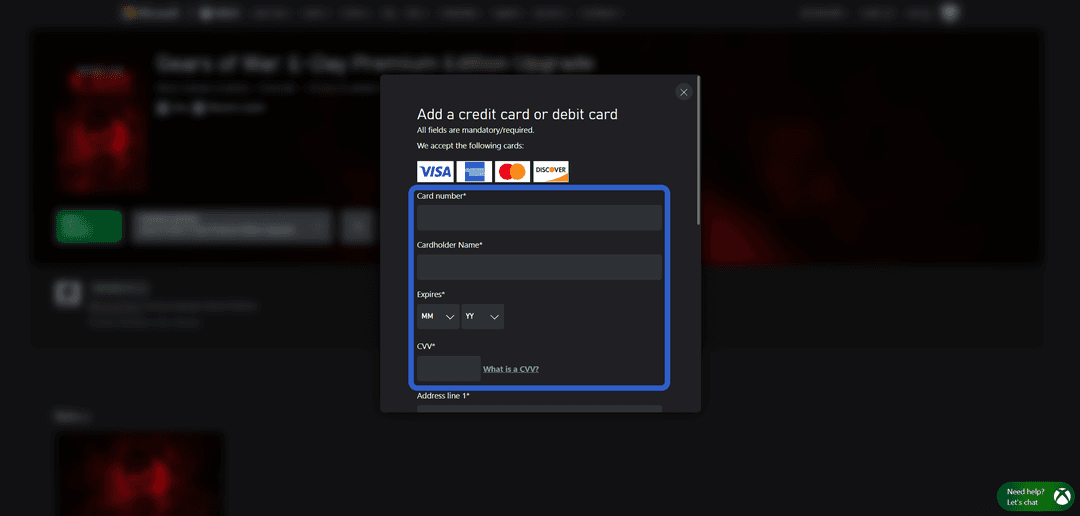
In it, you fill in the card number, the cardholder's name in the "Cardholder Name" field, the expiration date, and the security code, and below that, the address, where the "Country/Region" field takes the country matching the Mirocard's own details, not the buyer's country of residence.
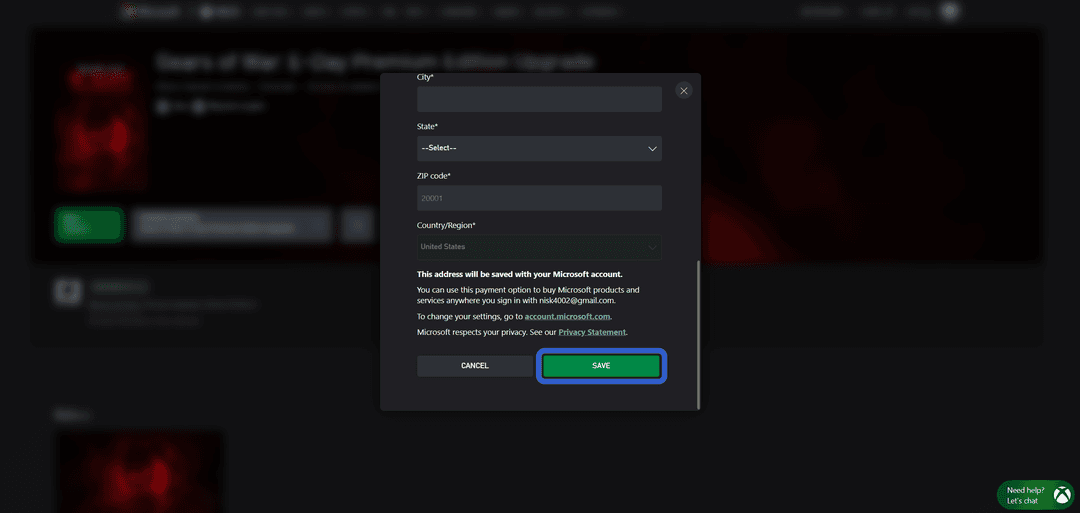
Once you fill in the address and click "Save," the card is saved to the account in full, and you won't have to re-enter its details for the next purchase or for Game Pass.
Xbox Game Pass: a separate payment scenario
Game Pass is a subscription, not a one-off purchase, so the charge happens not once but on the same date each period, until the subscription is canceled manually. The card added once through the form above is used for this automatically, with no repeat confirmation.
Canceling the subscription in account settings doesn't cut off access instantly — it usually stays until the end of the already-paid period, and the next charge simply doesn't happen. So if you're changing the card or the balance is running out, it makes sense to do that ahead of time, not on renewal day — otherwise access to the Game Pass library will lapse before the balance gets topped up again.
Conclusion
Paying on Xbox comes down to the same question — will the store accept your payment method? Mirocard covers payment for all your subscriptions, services, and games with one card, with no ongoing middlemen for every purchase.
Once the card is saved in your account through the add-payment-method form, further purchases in the Xbox Store work just like with any other card — with no codes, no middlemen, and no re-entering of details.