
How to Pay for Google Play with Cryptocurrency
Almost all apps on Android smartphones get there from Google Play, Google's app store. It also sells games, books, movies, and subscriptions, and on Android TVs, it's where video services are installed from.
Purchases are managed by your Google account. It has a payment profile where you add a card, and all spending in the store is charged to it. While the profile is empty, free apps download without restrictions, but any paid button runs into the payment screen.
We'll explain what you have to pay for in Google Play, how to add a card, and how to make sure charges don't come as a surprise.
What you can pay for in Google Play
All spending in Google Play is divided into one-time and recurring. What happens if the card runs out of money depends on which one it is.
One-time purchases are a paid app, a book, a movie, and everything sold inside games, whether it's currency, items, or ad removal. A purchased app stays in your account's library, and you won't have to pay for it again on a new phone.
Recurring spending means subscriptions. Google renews them itself on the due date until you cancel them. This also includes Google Play Pass, the store's own subscription, which opens hundreds of games and apps without ads or in-app purchases.
Content is sold separately. Books and audiobooks are bought in Google Play Books, movies and series in the Google TV app.
If the card doesn't have enough money, a one-time purchase simply won't go through. Subscriptions are trickier: after a failed renewal, your access to the service may be suspended.
Can you pay for Google Play directly with cryptocurrency
No. Google Play doesn't accept cryptocurrency in any country. The set of methods depends on the region and includes cards, Google Play balance, and gift codes, and in some places also PayPal and carrier billing.
For a crypto holder, that leaves a roundabout route through an exchange and a bank. The coins are sold, the money is withdrawn to an account, and only then is the subscription paid with a bank card. For a subscription costing a few dollars, the chain is too long.
How to pay for Google Play with cryptocurrency through a virtual card
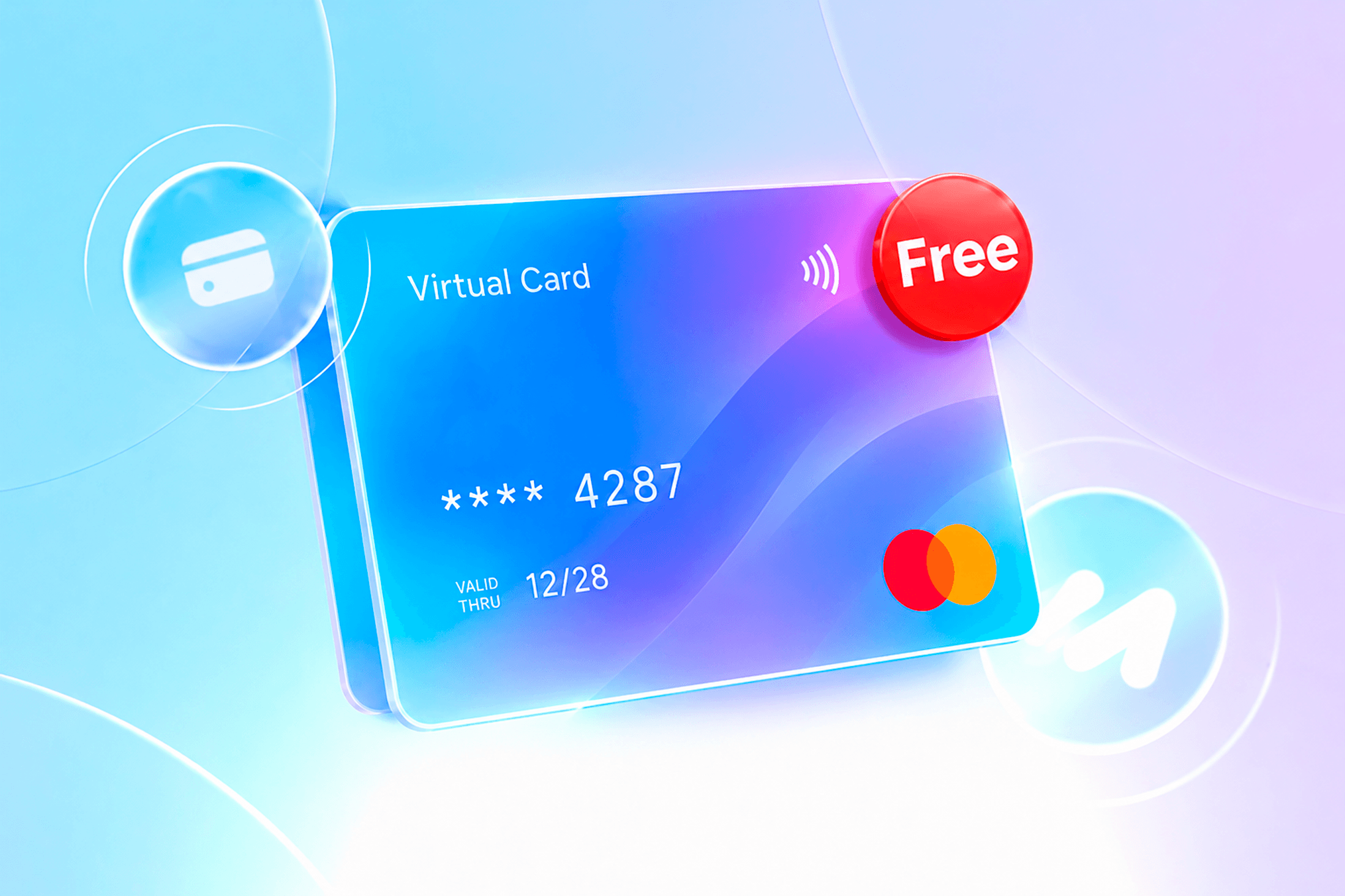
A virtual card removes the exchange and the bank from this chain. You top up the card with coins directly, and Google Play sees an ordinary Visa or Mastercard in front of it.
Coins are sent from a wallet or an exchange to the card service. After network confirmation, the amount moves to the card, and you add the card itself to your Google payment profile and choose it on the payment screen.
Keep a reserve on the card for a couple of months of subscriptions. While the money sits on it in the card's currency, a drop in the coin's price on the eve of a renewal won't affect it.
How to pay for apps and subscriptions with a virtual card
For Google Play, a virtual card is no different from a bank card. Its number is entered into the payment profile, and the store charges it for purchases and renewals.
You can get such a card in minutes, with no courier. And its balance also sets a ceiling on spending. If a subscription gets more expensive or a child gets carried away with in-game purchases, Google still won't charge more than the remaining balance.
Before linking, make sure of three things. The card must allow monthly charges, otherwise the subscription will be interrupted at the first renewal. The country and address in the form must match the profile's country. And there must be enough money on the card, taking the top-up fee into account.
Mirocard for paying for apps and subscriptions in Google Play
Mirocard virtual cards work in Google Play like any Visa or Mastercard. You can use them to buy apps, in-game currency, and Google Play Pass, and to set up subscriptions.
A Mirocard card is topped up in BTC, ETH, USDT, USDC, TON, TRX, or SOL. Once the coins are credited and transferred to the card, you can use it to pay in Google Play, where cryptocurrency isn't accepted.
The subscriptions card suits the app store. Its issuance costs from $5, and the top-up fee is from 4%. It supports recurring charges, so Google renews subscriptions right on schedule.
The two other cards cover different needs. The advertising card, from $5, is handy for holding the budget of ad accounts. The travel card, from $15, supports Google Pay, and with it an Android smartphone turns into a payment tool while traveling.
Issuing a card is covered in our guide. Once the card details are ready, the card is added to Google Play.
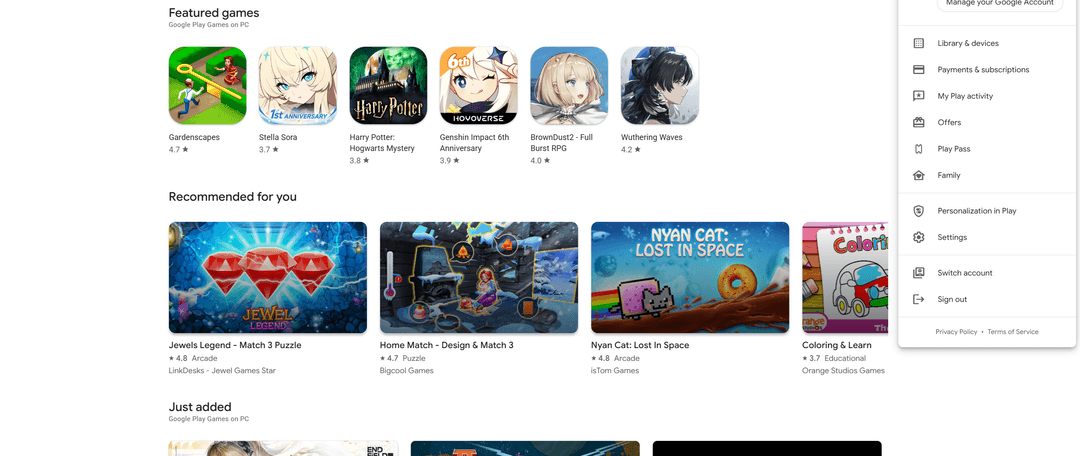
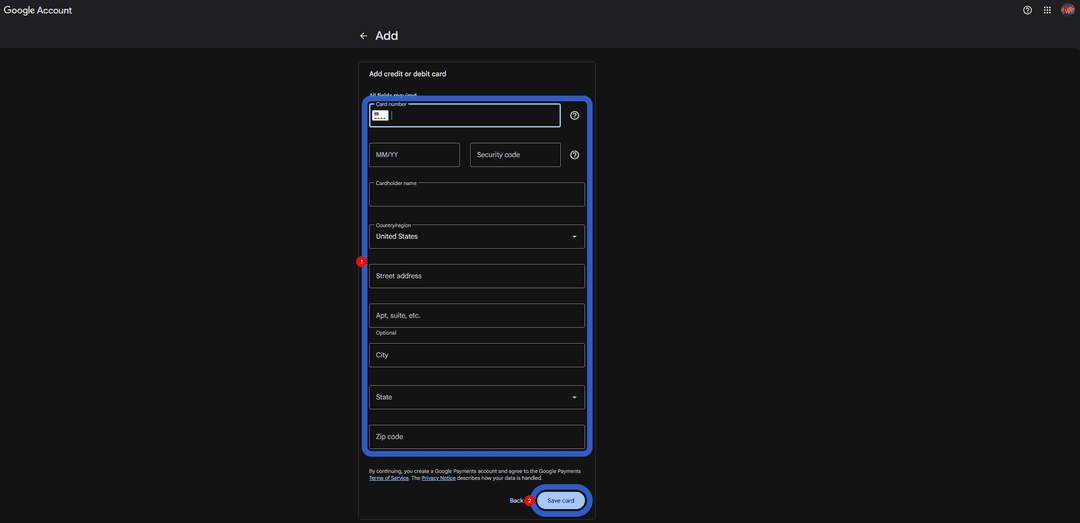
The form will ask for the number in the "Card number" field, the expiry date in "MM/YY", and the code in "Security code". Take them from your Mirocard account dashboard, add the cardholder's name, country, and address, and confirm with the "Save card" button.
The card will immediately appear among your payment methods, and on your next purchase, Google Play will offer exactly that one. If you have several cards, you choose the one you need right on the payment screen.
How to keep control of spending on apps and subscriptions
Most of the extra money goes to forgotten subscriptions and spontaneous in-game purchases. Google Play has its own tools against both.
Once a month, open "Payments & subscriptions" and review the list of subscriptions. Next to each one, the date of the next payment is shown. A canceled subscription works until the end of the paid period, so you can turn off an unneeded one right away.
A trial period ends with an automatic payment. If you didn't like the service, turn it off before the free period expires.
A monthly budget is set in the store's settings. It doesn't block spending, but it warns you when you're getting close to it.
In "Settings", turn on a password or fingerprint prompt before every purchase. This rules out both accidental taps and purchases by children on your phone.
If children from your family group use phones, turn on purchase approval. Then any purchase they make first comes to you for confirmation.
And a separate card just for Google Play gathers all spending into one clear line in your transaction history.
Conclusion
Once a suitable card appears in your payment profile, Google Play works like an ordinary store again. Purchases go through in a couple of taps, and subscriptions renew on schedule. The rest is a matter of habit. A quick check of your subscriptions and budget once a month protects you from spending you didn't even know about.