How to Top Up Your Nintendo eShop Balance and Pay for Games with Cryptocurrency
Nintendo eShop is Nintendo's digital store, where games, add-ons, and demos for Nintendo Switch and Nintendo Switch 2 are sold. You can access it directly from the console or through the Nintendo website, and a purchased game downloads to the console linked to your account.
Unlike many stores, the eShop is divided into regions, and prices, payment methods, and even the selection differ between them. Because of this, a purchase in the eShop sometimes fails where other services have no problems.
We'll look at how Nintendo's store works, which payment methods work in it, and what to do if a payment is declined.
What to know before buying games
All purchases in the eShop are tied to your Nintendo Account. The country specified in its settings determines which region's store you land in. You can't change the store's region separately; it always matches the account's country.
This rule applies to the money on your balance too. Funds in the eShop are held in the region's currency and don't carry over when you change countries. That's why Nintendo lets you change the country only after you've spent the remaining balance.
There are two ways to pay for a purchase. The first is paying by card right at checkout. The second is topping up your eShop balance and paying from it. The balance is topped up with a card, Nintendo eShop gift cards, or, in some regions, through PayPal.
The payment method is region-bound as well. Nintendo accepts a card only in the store of the region it was issued for. If the card's country and the account's country don't match, the eShop will decline the payment.
Purchased games stay in your account. You can re-download them to the console linked to the account, even if you deleted the game to free up space.
Can you pay for Nintendo eShop directly with cryptocurrency
No. Nintendo doesn't accept cryptocurrency either on the console or on the website. You can top up your eShop balance only with a card, a Nintendo eShop gift card, or, in some regions, through PayPal.
You can buy Nintendo eShop gift cards for cryptocurrency on third-party platforms. But the code is tied to the store's region, and if it doesn't match the account's region, the money won't reach your balance. Meanwhile, a cryptocurrency transfer can no longer be reversed.
It's more convenient to top up a virtual card with cryptocurrency and pay with it on the Nintendo website. That way you buy the game at the store's price, not a reseller's price, and you don't depend on the availability of codes in the right denomination.
How to pay for Nintendo games with a Mirocard virtual card
Mirocard is a service for virtual Visa and Mastercard cards used to pay for games, apps, and online services. The card is issued online, and its details appear in your account dashboard right away.
The subscriptions card suits purchases in the Nintendo eShop. Issuance costs from $5, and the top-up fee is from 4%. You can use the card to pay for a game right at checkout or to top up your eShop balance if you prefer to spend money gradually.
Keep Nintendo's regional rule in mind. The store accepts a card only in the region it was issued for. So before your first purchase, find out which Nintendo Account region the card works with and, if necessary, change the account's country.
We explained how to issue a card in a step-by-step guide. Once the card is ready, you can buy a game through the Nintendo website.
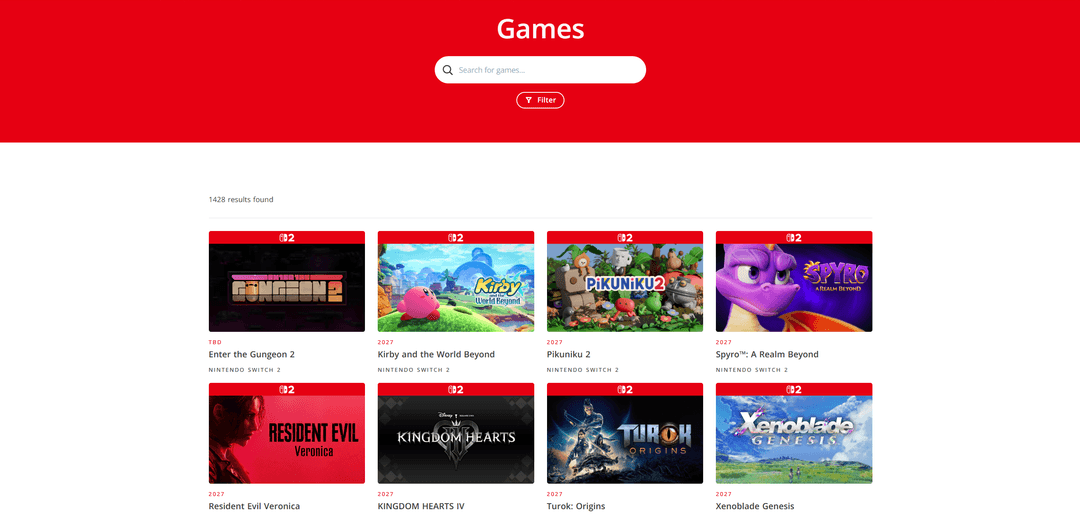
Open the Nintendo game catalog and find the game you need in the corresponding tab or through search.
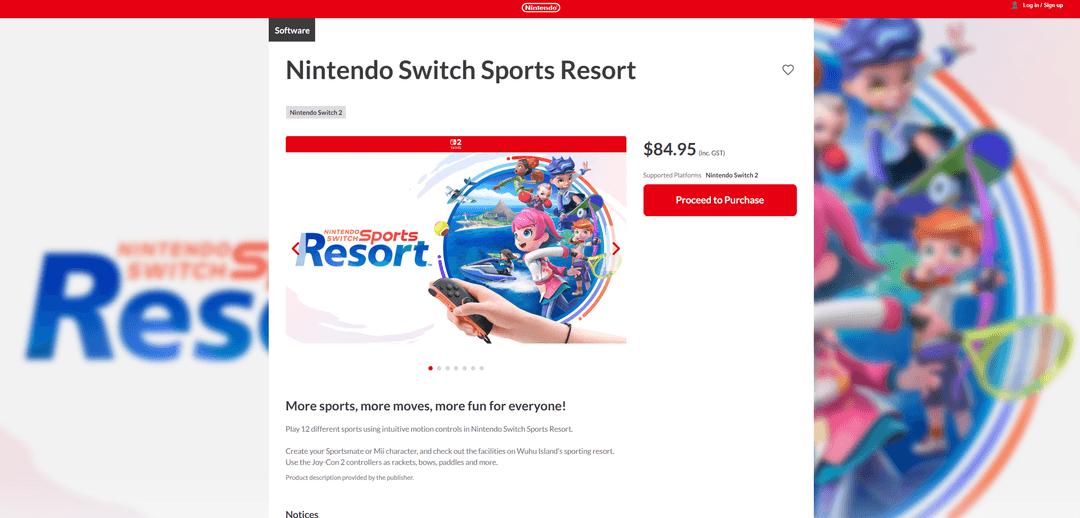
On the game's page, check the platform and price, then click "Proceed to Purchase". If you're not signed in yet, the site will ask you to sign in via "Log in / Sign up".
On the payment page, choose card payment and enter the number, expiration date, and CVC from your Mirocard account dashboard. Confirm the purchase. The game will appear in your account and download to the console once it connects to the internet.
Mirocard is topped up with cryptocurrency. BTC, ETH, USDT, USDC, TON, TRX, and SOL are supported, and once the coins are credited, you can pay on the Nintendo website with the card right away.
What to do if a purchase doesn't go through
Most often, a payment in the eShop is declined because of a region mismatch. The message that the card isn't suitable for the account's country is listed in Nintendo's help pages as error 2813-2471. It means the card's country and the account's country are different. Check the country in your Nintendo Account settings and use a card issued for that region.
Check the billing address. Nintendo matches it against the account's country, and an address from another country can be the reason for a decline.
Make sure there's enough money on the card. The top-up fee reduces the amount that reaches the balance, so put a little more on the card than the game's price.
Double-check the card details. One mistake in the number, expiration date, or CVC, and the payment won't go through. It's safer to copy the details from your account dashboard than to type them in by hand.
If card payment still doesn't work, Nintendo advises trying another method. You can top up your balance with an eShop gift card for the right region or through PayPal, if it's available in your country, and then pay for the game from the balance.
If the game has been paid for but hasn't appeared on the console, check whether the console is connected to the internet and linked to the same Nintendo Account you made the purchase on.
Conclusion
In the Nintendo eShop, region decides everything. The account's country, the gift code's region, and the card's country must match, otherwise the purchase won't go through.
Before paying, check these three parameters. Then the game will download to the console right after payment, with no declines and no trips to support.