How to Pay for PlayStation
PlayStation is Sony's gaming ecosystem, bringing together consoles, the digital PS Store, and online services for playing with friends. The catalog includes exclusives like God of War and Gran Turismo, plus thousands of third-party titles — from big AAA releases to indie games. Purchases happen right from the console, through the phone app, or on the PS Store website from a computer, and your purchased library is tied to your account and available on any device you sign into.
What PlayStation users pay for
The main costs on PlayStation split into one-off purchases and a subscription. One-off purchases are the games themselves, their add-ons, and in-game content like extra outfits or season passes, with the price for each item shown on its product page before checkout. The PS Plus subscription works differently — it unlocks online play with other users, and without it, a chunk of multiplayer modes simply isn't available, regardless of whether you own the game or not.
The subscription has three tiers — the base tier gives you online play and store discounts, the middle tier adds cloud save storage and a catalog of downloadable games, and the top tier expands the catalog with games from older console generations and trial versions of new releases ahead of launch. The difference between tiers is noticeable if you play often and want to try new things without buying every game separately — for playing through a single console exclusive once, the base subscription tier is enough.
What payment methods actually work
A bank card. A personal account with a bank in the country matching your account's region gives the most predictable result — the card links directly and charges for every purchase with no extra steps. Setting up that kind of account takes time and often requires an in-person visit, so this method suits people who already keep an account abroad for other purposes rather than opening one solely for one store.
A virtual card. A card with international details links to PS Store the same way a regular one does, as long as its BIN passes Sony's payment system check. One important detail — Sony changes the rules of that check from time to time, so a card that worked a month ago isn't guaranteed to work again, and it's smart to treat this method as your main option, not your only one.
Intermediary services. Topping up a PSN wallet directly by login or email through a third-party service is a way to skip a bank card entirely, paying in your local currency through an ordinary transfer. Most of these services cap the maximum amount per transaction, so this method doesn't always work for buying one expensive game outright, but it works fine for regular small top-ups.
Mirocard for paying for PlayStation
Mirocard issues a virtual Visa or Mastercard with international details that you can link directly to PS Store, with no need to buy separate codes for every top-up.
The card balance is built straight from cryptocurrency in your wallet — no exchange, and no third party handling the payment for you — the funds become available on the card almost immediately.
How to pay for PlayStation with cryptocurrency via Mirocard
Issuing the card is a one-time $5 fee, and every balance top-up after that carries a 4% charge — there are no other fees. The full process of getting the card is laid out step by step in a separate article on issuing a Mirocard virtual card — below is what to do with the finished card details.
Linking it to a purchase takes a couple of minutes no matter where you are — at your computer or on the couch with a controller in hand.
Find the game you want in the PS Store — from a computer via store.playstation.com, or right on the console through the store app — and open its page.

Add the item to your cart and move to checkout — at this step, the system will ask for a payment method.
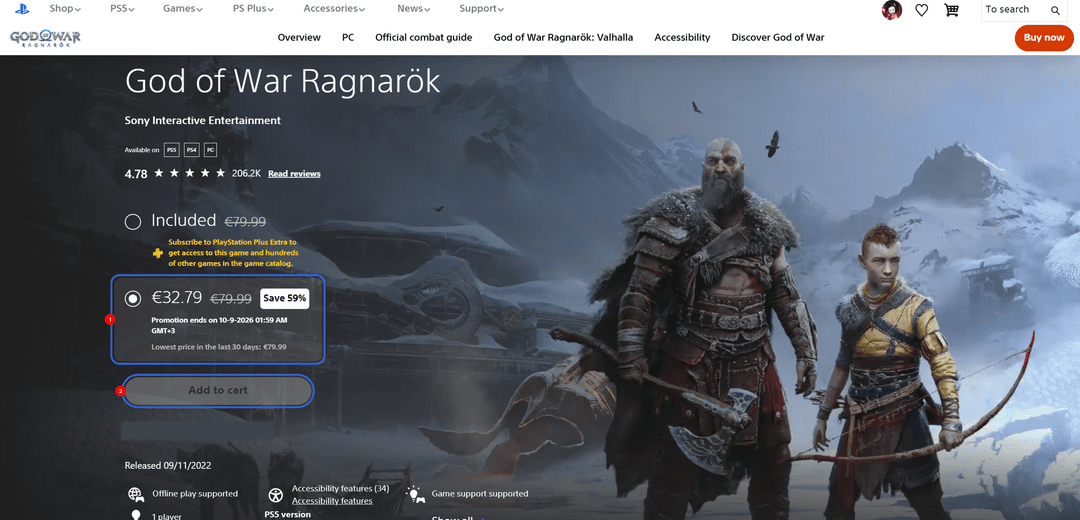
Choose card payment and enter the three values from your Mirocard — number, expiration date, and security code.
On the final screen, the system will show the total including any applicable tax based on your account address — check it before confirming, since the final amount can differ slightly from the price on the product page.
What to do if the payment gets declined
A decline is usually down to one of three things — balance, card details, or the card's status — and it's worth checking them in that order. Your card needs more on it than the game costs — currency conversion sometimes adds a few percent on top. Next, double-check what you entered — a stray space in the card number or a mistake in the expiration date will get a payment declined just as reliably as insufficient funds.
If the money and the details are both fine, open your Mirocard account and make sure the card isn't blocked and that international transactions are turned on — without that option, payments outside the issuing country simply won't go through. If a payment still doesn't go through after all these checks, it's worth describing it to Mirocard support, naming the exact step where the system threw an error — that gets you a fix faster than retrying the payment blind.
Conclusion
The trouble with paying for PlayStation is that the service has no way to accept cryptocurrency directly, and there's no ordinary bank card that lets you pay with crypto either. Mirocard closes that gap with a single card that can be issued in a few minutes and then used not just on PS Store, but on plenty of other online services too.