How to Pay for Google Photo
Google Photo is a cloud service for storing and organizing pictures and videos that automatically sorts your library by date, faces, and location, with no manual folder sorting. The app syncs photos from your phone in the background, so even if you lose the device, your archive stays accessible through the web version or another device on the same Google account. Built-in search recognizes objects and people in photos, so you can find what you need by description instead of scrolling through dates by hand.
A basic Google account covers a limited amount of storage, and once photos and videos outgrow that limit, you'll need a separate paid subscription for extra space.
What Google One is and how it connects to Google Photo
The practical takeaway is simple — before buying a tier, it's worth estimating your total space use across all three services, not just your photo archive, or the storage you bought might run out sooner than expected.
What Google One tiers are available
The next tier up is 200 GB, which fits anyone who finds 100 GB tight within the first year of use, and larger tiers with even more space are available in the full plan list if your storage needs keep growing.
Why paying for Google Photo can be tricky
The reason is that Google One only accepts card payment or similar fiat methods through Google Wallet — there's no direct crypto payment option in the payments section. Cryptocurrency in a wallet just stays an asset until it's converted into a regular payment instrument; Google doesn't offer a built-in bridge between a wallet and a subscription.
A virtual card for paying for Google Photo
The principle here is simple — Google Wallet checks a virtual card with international details using the same algorithm as a card issued by a traditional bank in another country, since the system looks at the issuer code and the payer's data, not where the details themselves came from. That's where the main practical advantage comes from — you get the card online in a few minutes rather than waiting weeks to open an account abroad.
This matters especially for Google One, since the subscription charges regularly, every month or year depending on the plan you pick — the card needs to keep working not just for the first payment, but for every renewal after that, with no failures.
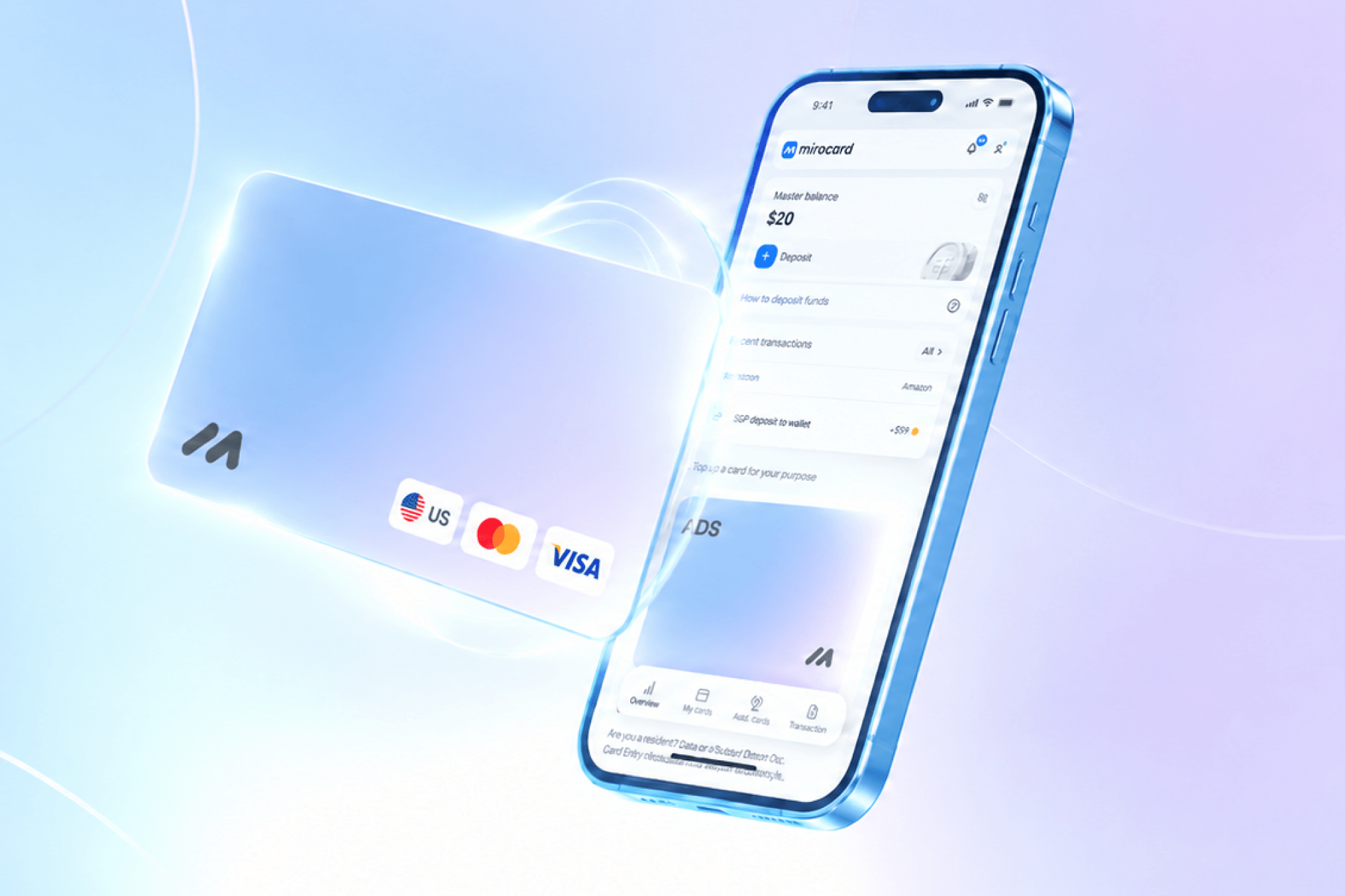
Mirocard for paying for Google services
Mirocard solves this with a card built specifically for an ecosystem of services like Google's — a virtual Visa or Mastercard gets added to Google Wallet through the same form as any other card, and from there works the same way for Google One and for purchases on Google Play, if you need those too.
The card balance is built straight from cryptocurrency in your wallet, skipping exchanges and intermediaries — the transfer takes a few minutes, and you can pay for the subscription with the card right after.
Issuing the card costs $5 once, and every following balance top-up carries a 4% fee. The full setup process, from application to finished numbers on screen, is covered in detail in an article on issuing a Mirocard virtual card.
How to pay for Google Photo with Mirocard
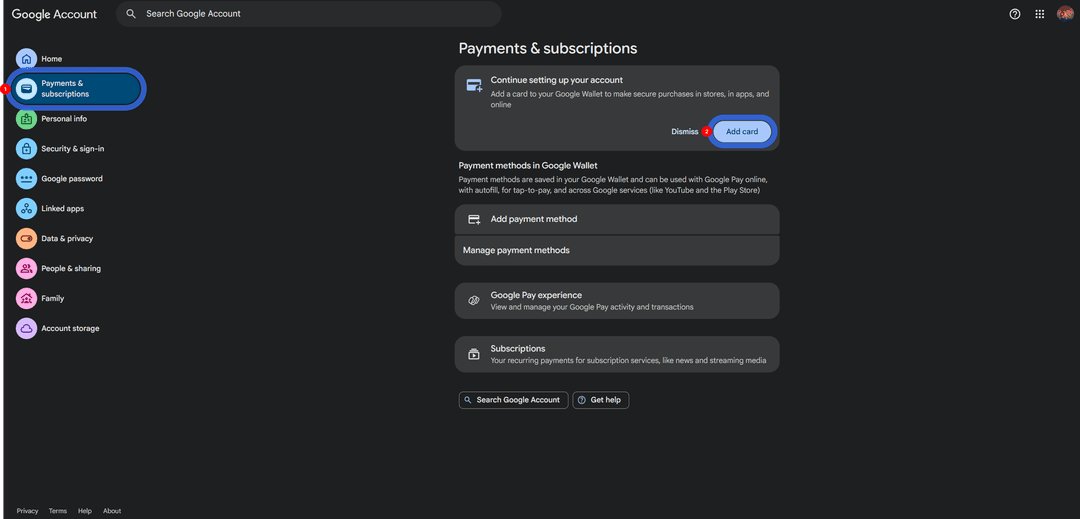
Before buying extra space, it's worth linking the card to your Google account itself once, rather than looking for a payment form directly inside Google Photo. Go to your Google Account and open the "Payments & subscriptions" section.
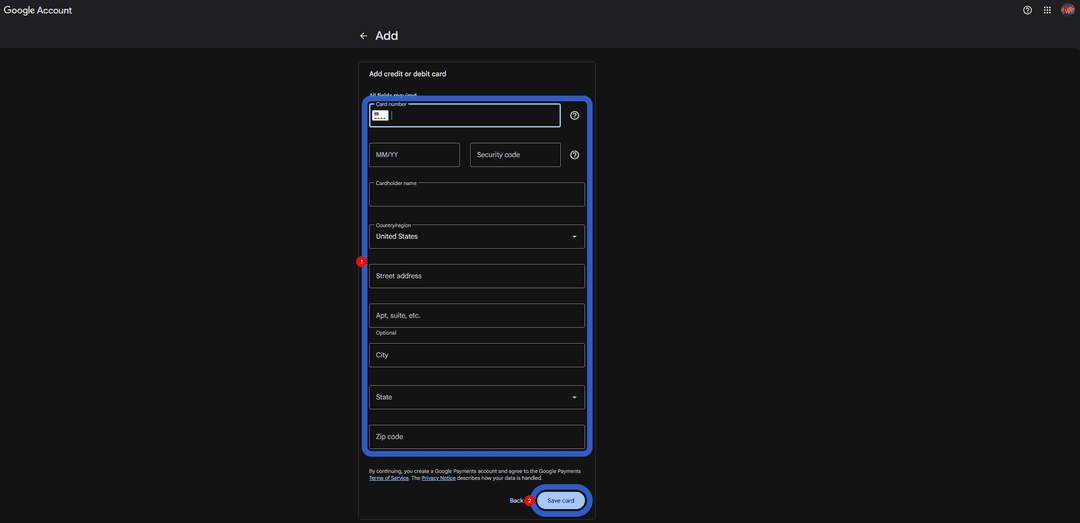
Finish adding the card with the "Save card" button — it saves to your account and becomes available for any future purchases across Google's services.
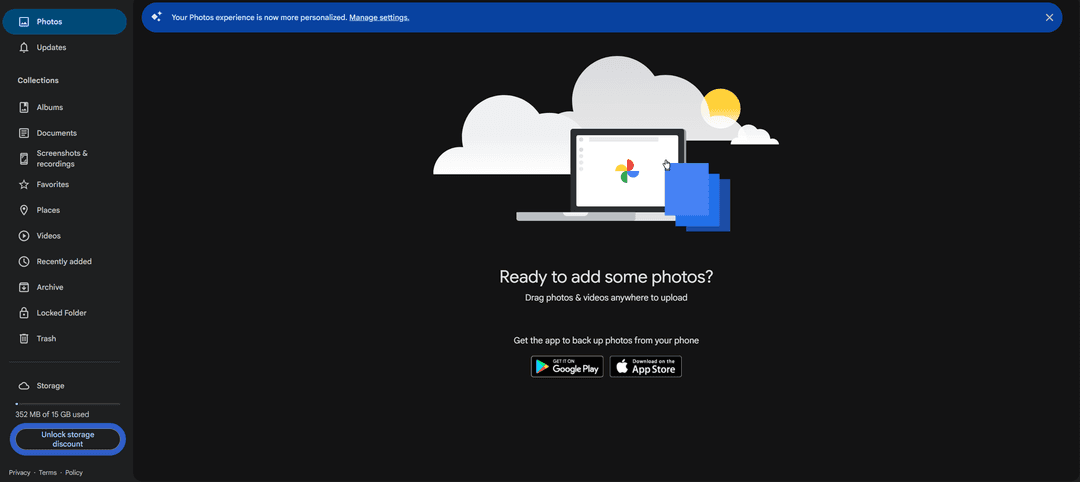
Now open Google Photo and, in the bottom-left corner of the screen, find the block showing your storage usage — below it is a link like "Unlock storage discount" or "Get more storage" that takes you straight to Google One's pricing page.
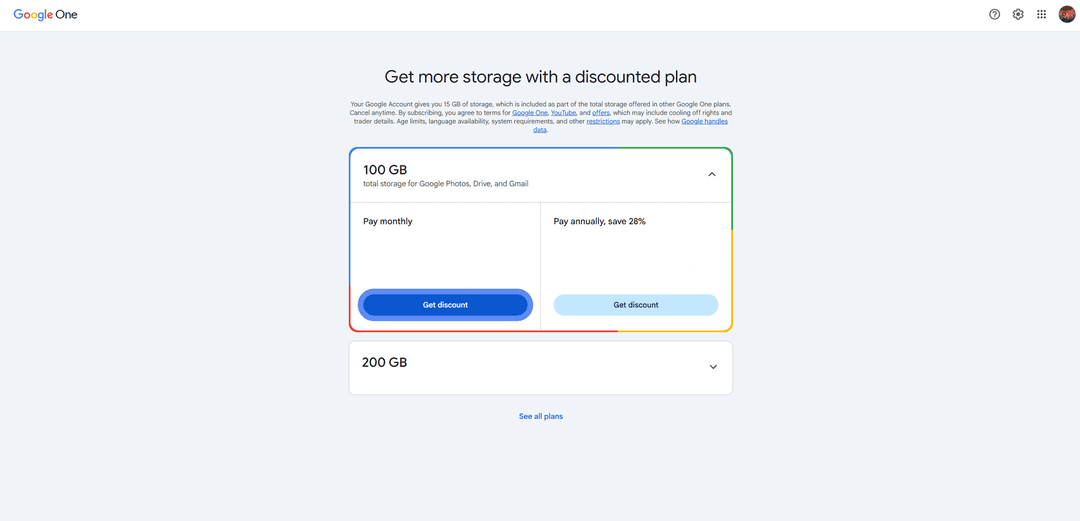
Pick the storage size and billing period you want, monthly or annual, and click the price button under the plan you chose.
On the next screen, confirm that payment will go through the Mirocard you already added — the system won't ask for the details again, since the card is saved in Google Wallet from the previous step — and finish the purchase with the final confirmation.
How to pick a Google One tier for photos and videos
Also factor in future uploads, not just your current archive — if you regularly shoot high-resolution video, your library grows noticeably faster than for someone who mostly stores text documents. A sensible habit is checking your storage usage periodically to see whether you're approaching your tier's limit, so you can move up to a higher plan ahead of time rather than at the moment new photos stop uploading because you've run out of space.
Conclusion
Space in Google Photo runs out without a week's warning — new shots simply stop syncing until either free space opens up or you pay for a Google One tier. A Mirocard virtual card handles the payment question ahead of time, before it becomes a problem in the middle of an important shoot.