How to Pay for InShot
InShot is a mobile video and photo editor people use to cut clips for social media right from their phone, with no need to move material to a computer. In the app, you trim and merge clips, add music and text, and insert transitions between scenes, and the latest versions have added AI tools too — automatic background removal and text-to-voiceover generation.
The free version lets you try basic editing, but the finished clip carries the InShot watermark, and some tools are locked. For content published under your own name or handed off to a client, that watermark alone makes the free version unusable, which is where the demand for Pro comes from.
What's included in InShot Pro
Among the AI tools, Pro gives you face retouching on video and AI-powered background removal, plus text-to-voiceover generation in a few dozen languages — handy when you need narration but don't want to record your own voice, or don't have the means to.
What purchase options are available for InShot Pro
InShot Pro has three payment models, and the difference between them isn't in the features, but purely in how and how much you pay. A monthly subscription is the most expensive option per month, but it doesn't require a large sum upfront and suits a one-off project after which you won't need Pro anymore. An annual subscription is usually sold at a significant discount against the monthly price — the app shows this right on the plan selection screen, where the old price is crossed out with the savings percentage listed next to it.
The third option is a one-time, permanent Pro purchase, with no charges after that at all. In terms of money, the one-time purchase is usually more expensive than a year of subscription, but it pays off if you're sure you'll keep using InShot going forward — then the upfront overpayment turns into savings over a span of several years. It's worth checking the exact price of each option directly in the app at the time of purchase, since prices vary by region and change periodically.
Why paying for InShot can be tricky
The reason is that neither the App Store nor Google Play lets you pick cryptocurrency as a payment method — only a card or local fiat methods like Apple Pay. Funds sitting in a wallet stay just an asset until they're converted into a regular payment instrument; these stores don't offer a built-in path straight from cryptocurrency to a subscription.
A virtual card for paying for InShot
The point of a virtual card here isn't that it's cheaper or faster than a bank account — it's that to the App Store and Google Play, it's fundamentally indistinguishable from a card issued by a bank in another country. Both stores check the details using the same algorithm, without looking any deeper into the card's origin than the BIN code. It links to your Apple ID or Google account the same way any other card does, and you can get the details online in a few minutes, with no bank branch visit.
Mirocard for apps and subscriptions
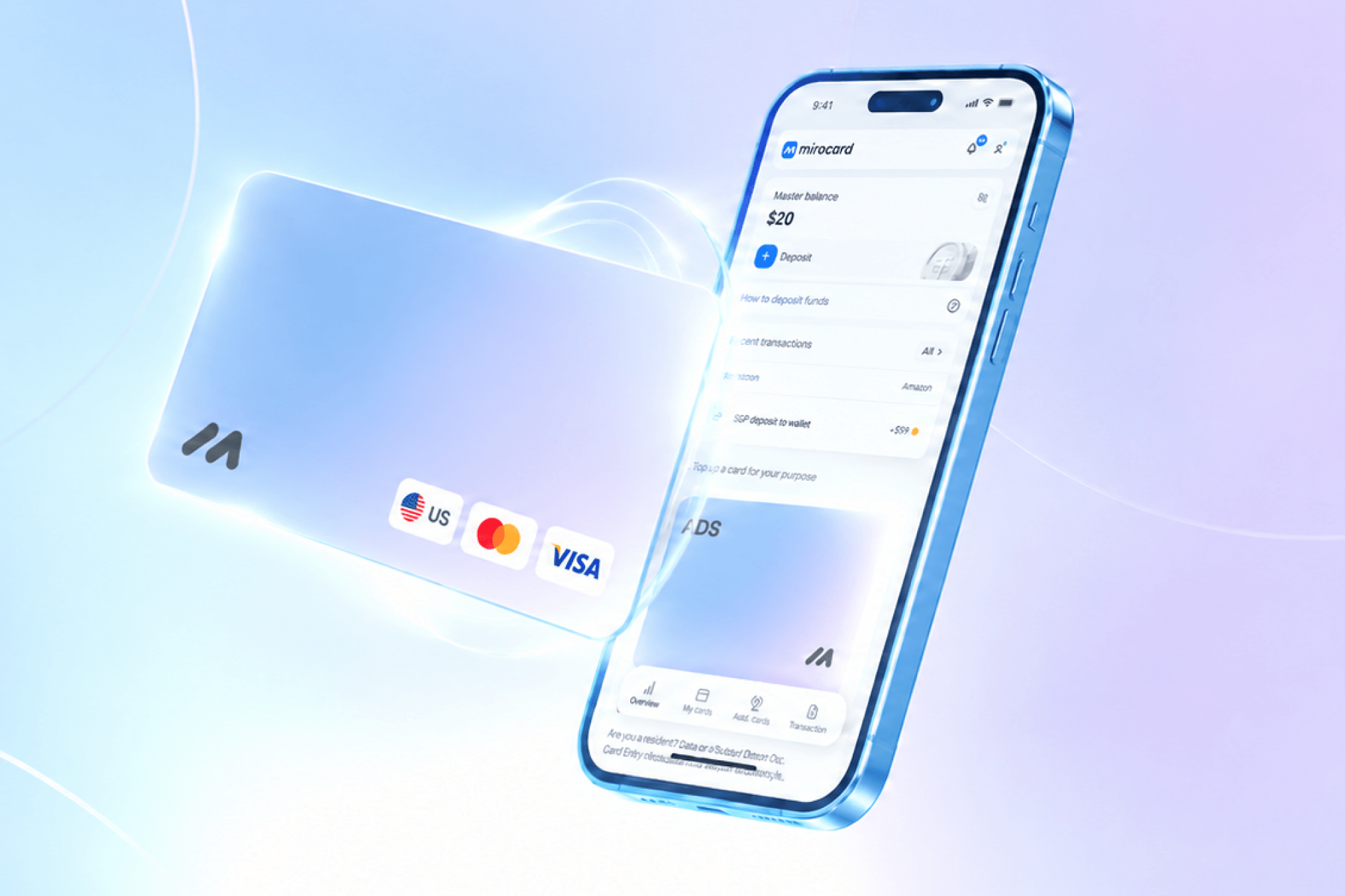
Mirocard issues a card like this not as a side product, but as its core one — a virtual Visa or Mastercard designed from the start to link to an app store and pass its checks with no surprises. For InShot, that means the details work equally well for a monthly subscription with repeat charges and for a one-time permanent Pro purchase, since in both cases the app store sees the same card.
The card balance is built straight from a crypto wallet, with no exchange and no intermediary handling the payment for you. The transfer takes just a few minutes, and you can start paying with the card right away.
Issuing the card costs $5 once, not per purchase, and every top-up after that carries a 4% fee. The full setup process — from application to finished numbers on screen — is covered in detail in a separate article on issuing a Mirocard virtual card.
How to pay for InShot with cryptocurrency through Mirocard
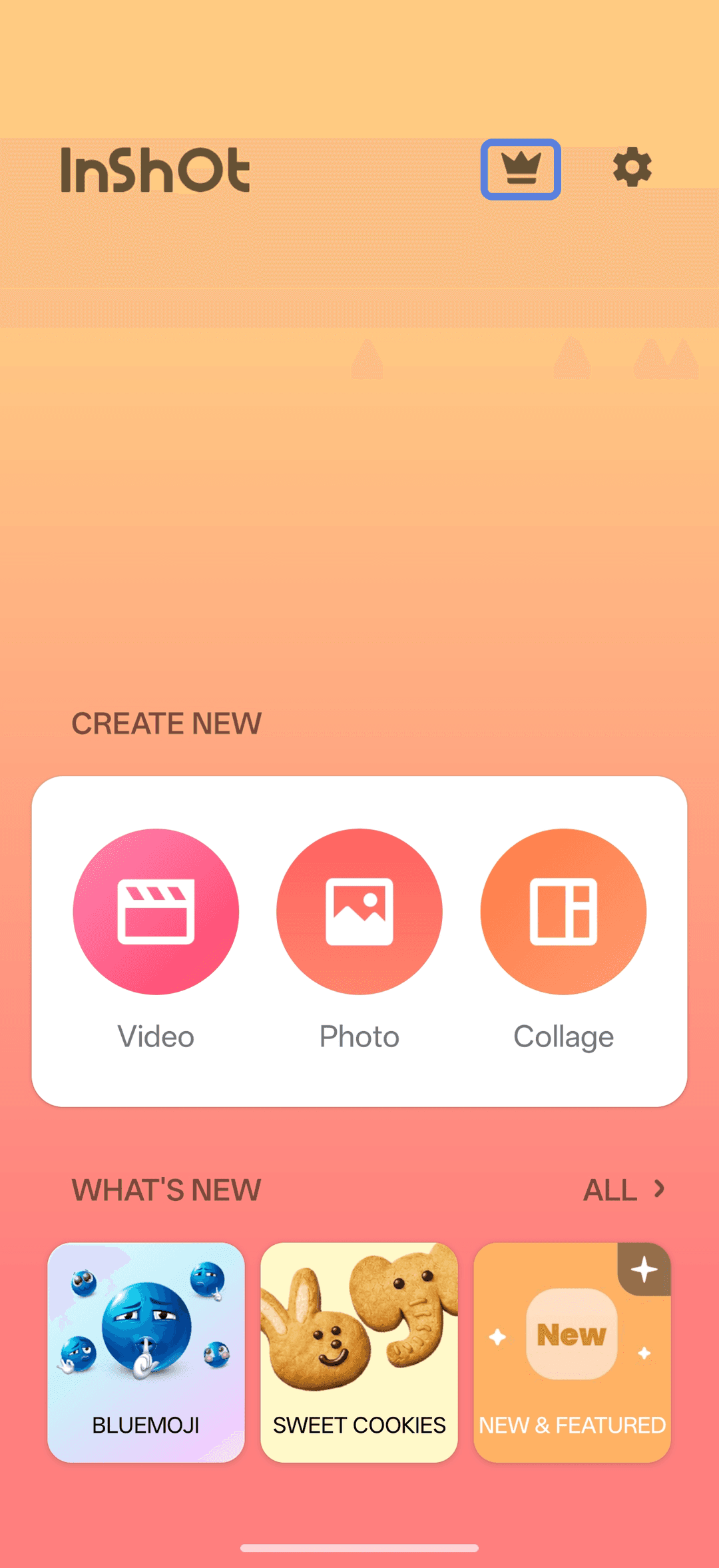
Open InShot on iOS or Android, and on the main screen, tap the crown icon in the top-right corner — it takes you straight to the Pro pricing screen with a list of what unlocks after purchase.
On this screen, pick a plan — monthly, annual, or lifetime, if that option is available in your region — using the toggle or radio button next to the price you want.
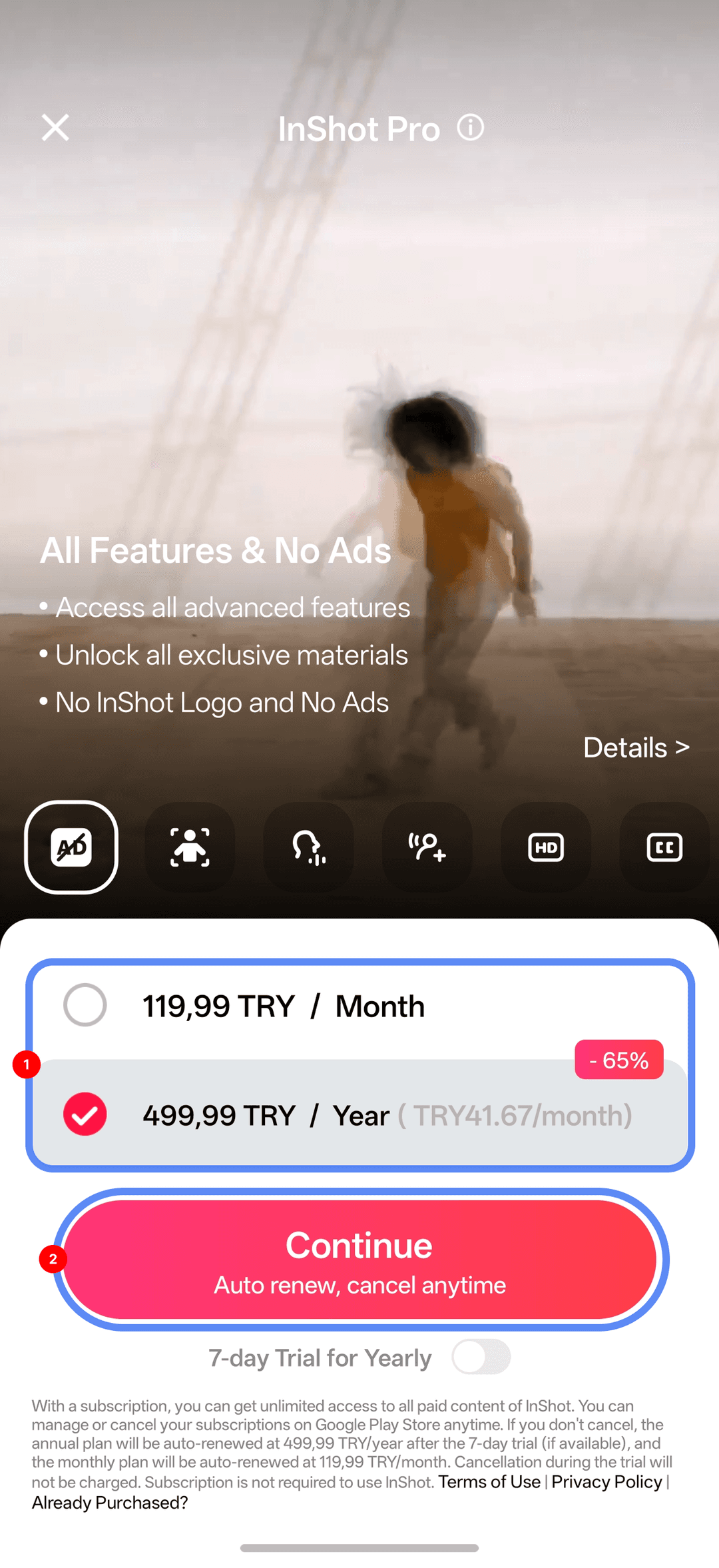
On iPhone, once you've picked a plan, tap "Continue" — the standard App Store payment window opens. If the Mirocard isn't linked to your Apple ID yet, the system will prompt you to add a payment method right there, and you'll need the card number, expiration date, and security code; you'll finish the purchase by confirming with Face ID, Touch ID, or your account password.
On Android, tapping the same button opens Google Play's list of payment methods, and if the Mirocard isn't there, look for the option to add a new bank card right on this purchase screen. After entering the same three details, the system shows the total amount and a confirm button, and access to Pro opens right after the charge goes through.
What to choose — a subscription or a permanent InShot purchase
A subscription makes more sense if InShot is needed for a specific project or a season of active filming rather than continuously — you pay exactly for the period you use the features and don't overpay for idle months. It's also easier to test whether the Pro tools are actually useful in your work without risking a large sum right away — a monthly plan is always cheaper than a one-time payment for permanent access.
A permanent purchase pays off over the long run if you're confident that editing will still be part of your work a year or two from now — then the higher price at the start turns into every following month of use being free. If you're not sure which scenario fits you, start with a monthly subscription — you can always switch to a permanent purchase later, while going back from a one-time payment to a subscription no longer makes sense.
Conclusion
InShot Pro's features are exactly the same whether you subscribe monthly or buy it once permanently — the only difference is the payment schedule, not what unlocks in the app. A Mirocard virtual card lets you pay for InShot, including an auto-renewing subscription, in a few minutes, in whichever way suits you.