
How to Pay for Microsoft 365 Subscription with Cryptocurrency
#Payment Instructions
Microsoft 365 is a suite of programs and services from Microsoft that brings together familiar office applications, cloud storage, and collaboration tools. With a subscription you get the latest versions of Word, Excel, PowerPoint, and other programs, along with cloud storage space and regular updates. The service is designed for people who work with documents, study, or run a team.
Not everyone manages to pay for the subscription directly. Some users keep their funds in cryptocurrency, which Microsoft does not accept. For others, bank cards fail on international payments. We will cover both situations and show a working solution.
What Microsoft 365 offers
Office applications
The package includes Word, Excel, PowerPoint, Outlook, and other programs for work and study. These are full versions of the applications, not stripped-down online alternatives. Word for texts and documents, Excel for spreadsheets and calculations, PowerPoint for presentations, Outlook for email and calendar. The applications run on a computer, tablet, and phone, and files open the same way on every device.
OneDrive cloud storage
The subscription comes with space in the OneDrive cloud storage. Files are stored not only on your device but also in the cloud, and they sync across all your devices. A document you started on your computer picks up right where you left off on your phone. If a device breaks or gets lost, your files remain accessible through the cloud.
Collaboration
Regular updates
The subscription gives access to up-to-date versions of the programs. You do not need to purchase new versions of Office every few years — updates arrive automatically as long as the subscription is active. This applies to new features as well as security updates.
Why payment difficulties arise
The main challenge for cryptocurrency holders is that Microsoft does not accept crypto. Subscription payments go through bank cards and local payment systems. If your funds are in USDT, BTC, or Ethereum, you cannot pay directly. You first have to sell the crypto on an exchange, withdraw fiat to an account, and then link a card. A long chain with fee losses at every step.
What payment methods are available
There are several workable options, and the right one depends on what funds you have available.
Bank cards
A card from a bank in a country where Microsoft 365 operates officially is one of the most common ways to pay for the subscription. The service accepts it like any regular Visa or Mastercard.
For crypto holders there is a limitation — the card does not work with cryptocurrency. To pay with it, you first have to exchange your crypto assets for fiat through an exchange and withdraw the money to an account. On top of that, opening an account at a bank in another country is usually not easy — it requires a personal visit and proof of address. That level of effort is rarely justified for a single subscription.
Intermediary services
These are services used to pay for specific international platforms on behalf of the user. You transfer money to them, including crypto, and they pay for the subscription from their own funds.
The convenience is that you can pay in different ways. But the service charges a markup, typically 15 to 30%. For a subscription with auto-renewal, intermediaries are inconvenient — you have to repeat the process manually every month. And there is a risk of depending on the integrity of the service, especially when paying with crypto, where transfers are irreversible.
Virtual cards
A virtual card is a convenient tool for paying for international online services. It is a bank card without plastic, with a number, expiry date, and CVV. Microsoft accepts it like any regular international card.
The key advantage for crypto holders is that some virtual card services are topped up directly with cryptocurrency. Crypto goes onto the card, and from there a regular subscription payment is made. No exchanges or bank accounts needed. The card is set up online in a few minutes.
Why virtual cards are popular for paying subscriptions
Virtual cards are well suited to the subscription model, and there are several reasons for this.
First — they handle regular monthly and annual charges. You can link the card to a subscription once, and payments go through automatically as long as there are funds on it. No need to enter the details again each time. Second — fast issuance. The card is set up online and ready to use right away, without visiting a bank or waiting. Third — wide coverage. One card pays for a wide range of international services, from office suites to streaming platforms.
It is also convenient to issue a separate card for subscriptions and keep exactly the needed amount on it. This makes it easier to track spending and see how much goes to recurring payments. If you decide to cancel a subscription, simply stop topping up the card and the charge will not go through.
Mirocard for paying Microsoft 365
Mirocard is a virtual card service for paying for international services and subscriptions. Cards are issued under Visa and Mastercard, topped up with cryptocurrency, and accepted by Microsoft like regular international cards.
For paying Microsoft 365, the subscription card is the right choice. It is designed for recurring charges, so the subscription renews automatically without interruptions. Issuance costs 10 dollars, and the top-up fee is 4%. The card's US BIN means Microsoft recognizes it as a card issued in the United States, which is convenient for an account linked to the US.
The card can be topped up with ETH, USDC, USDT, AVAX, BCH, DAI, BNB, BTC, DASH, DOGE, POL, LTC, SOL, TON, TRX, and XMR. A transfer from an exchange or wallet takes a few minutes, and funds are immediately available for payment.
One card works not only with Microsoft 365. Netflix, Spotify, ChatGPT, cloud services, and other platforms accept it without any extra setup. For a user with several subscriptions, this is one tool and all charges come directly from the crypto wallet.
How to get a Mirocard
The setup is done online and usually takes less than half an hour.
Step 1. Registration
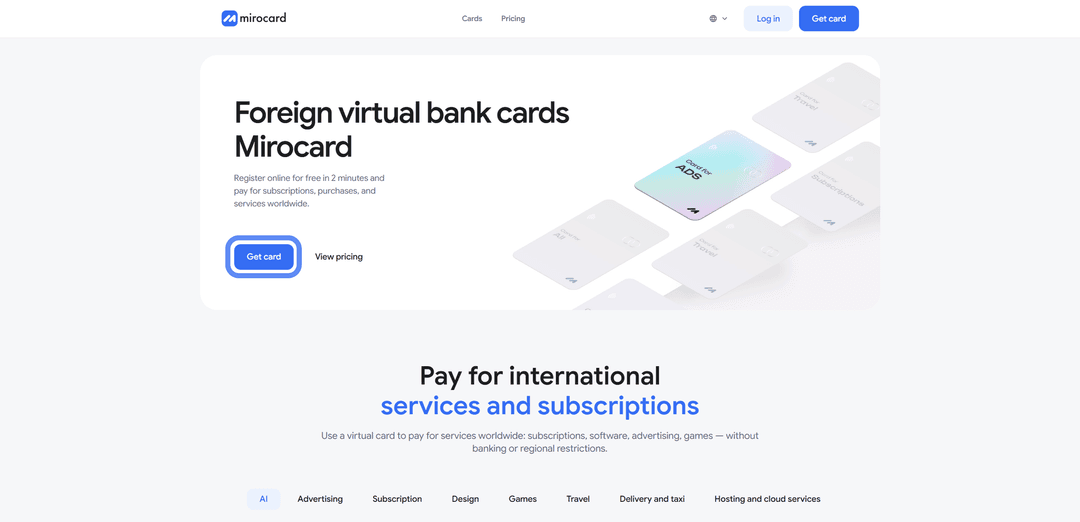
Open the Mirocard website and click "Get a card".
If you are new to the platform, choose "Register".
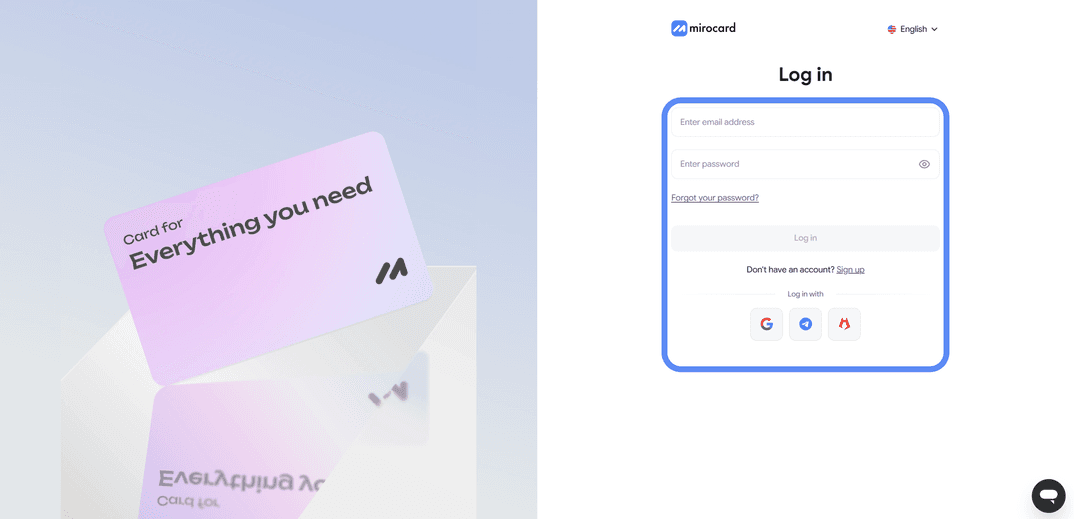
You will need a working email and password; a confirmation link will be sent to your inbox. If you have a Heleket account, sign in through it — all funds and cards will transfer to Mirocard automatically.
Step 2. Topping up the Master Balance
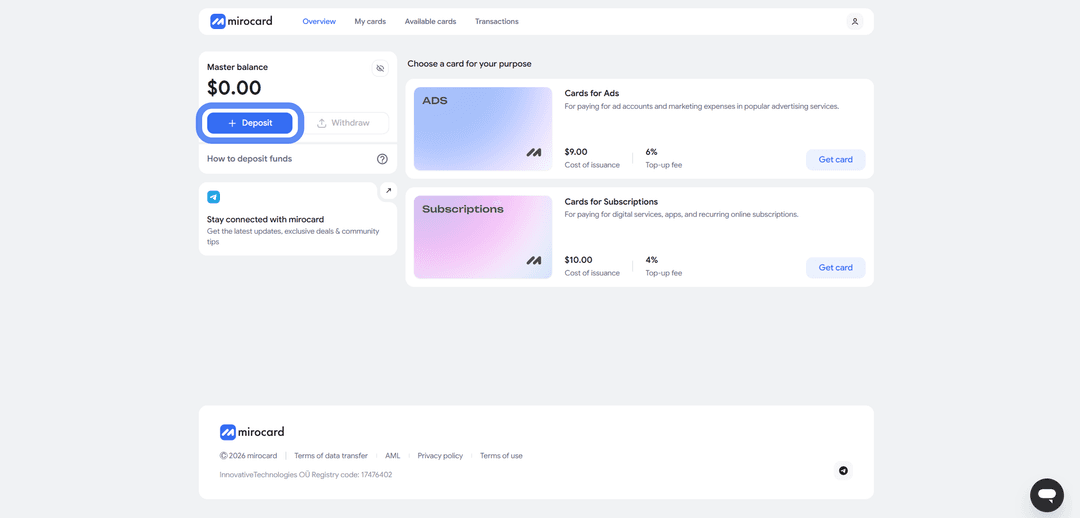
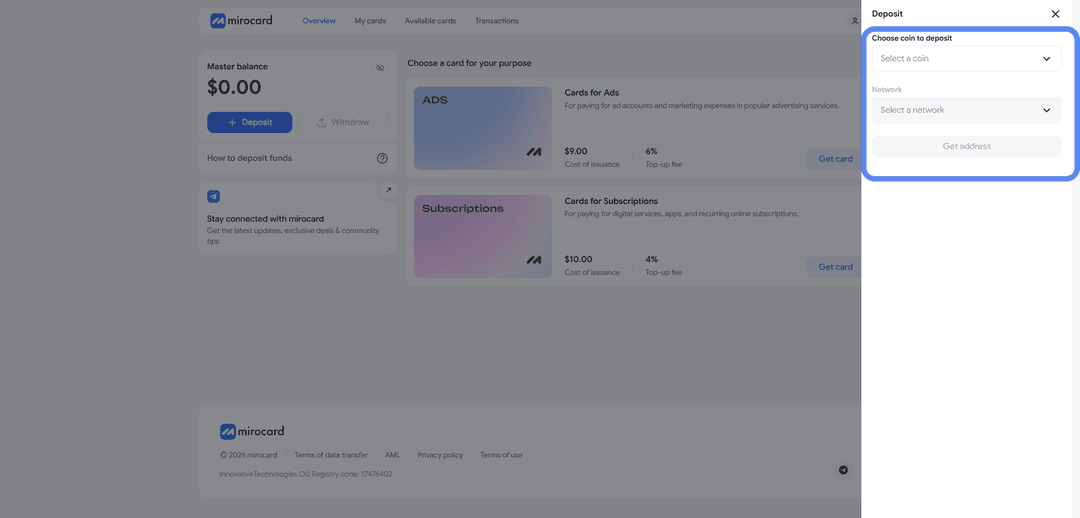
The lowest transfer fee is with USDT on the TRC-20 network. The service will provide a wallet address to send crypto to from an exchange or external wallet. Once the transaction is confirmed on the blockchain, the balance will be credited.
Step 3. Choosing a card
In the catalog, select the subscription card and click "Get a card" on the right side of the block.
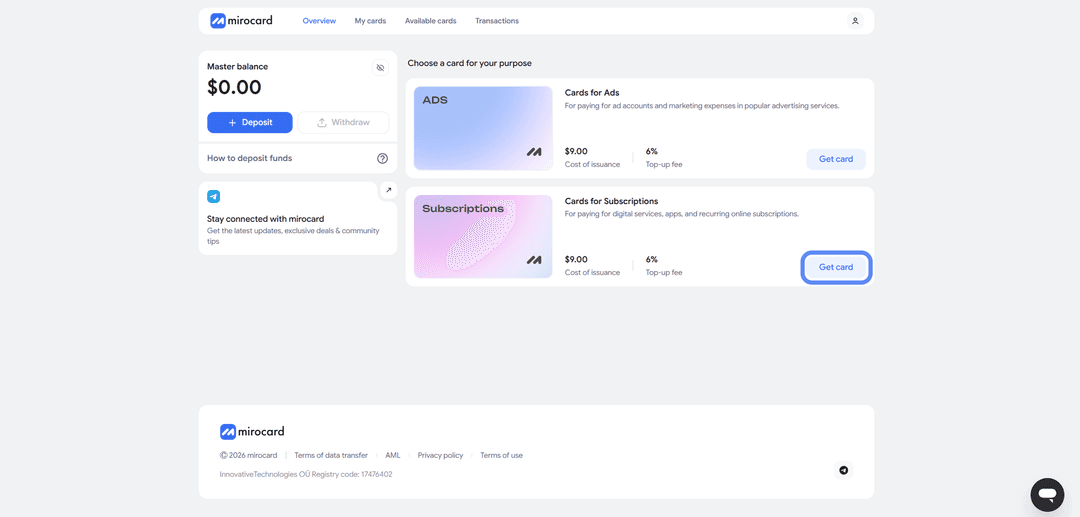
The setup page will open.
Step 4. Verification
Before issuance, you need to upload documents for identity verification.
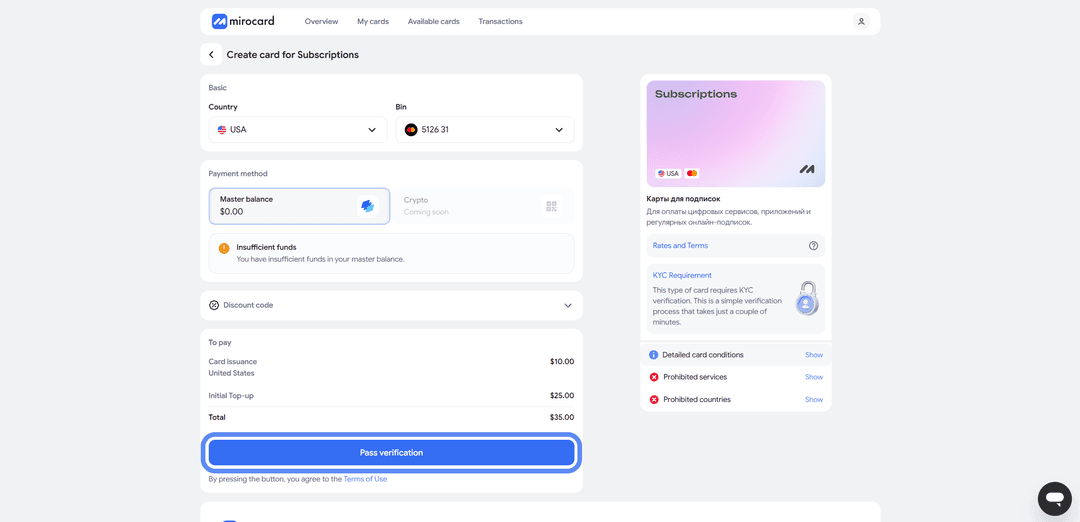
This protects your balance — only you will be able to manage it and link new cards. After the check, maximum limits on top-ups and spending will become available.
Step 5. Paying for issuance
On the setup page, click "Deposit and pay".
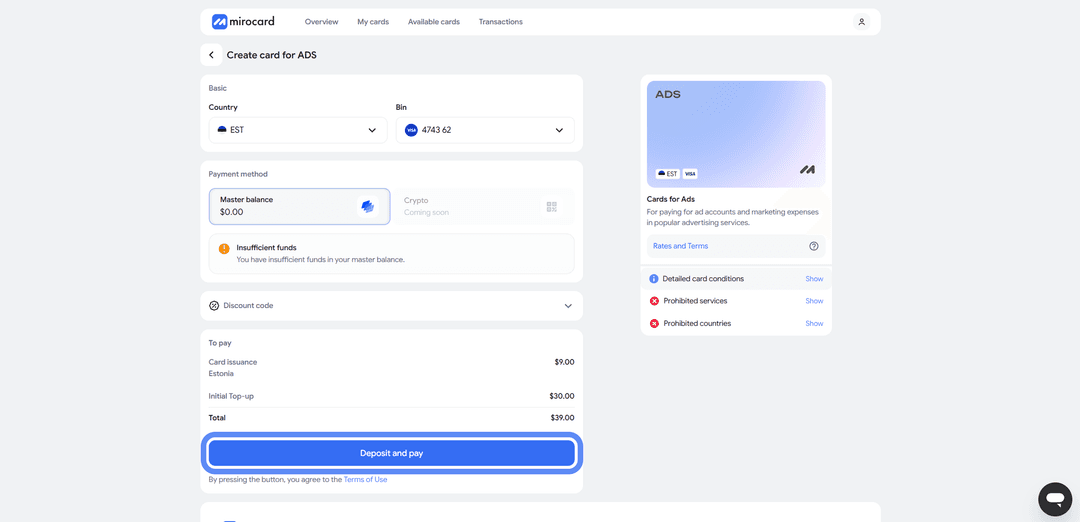
The issuance fee of 10 dollars will be deducted from the Master Balance. The remaining amount will be transferred to the card account and will be available for payment.
Step 6. Card is ready
The card will appear in your account with its details and balance. No activation is needed — it accepts payments right away. The account also shows transaction history, top-up options, and the ability to freeze the card if needed.
Tip — keep a small reserve on the card above the subscription cost. When paying, Microsoft may temporarily hold a slightly larger amount to verify the card. This is a pre-authorization; the excess is returned within a few hours. If the balance is exactly the subscription amount, the check will fail and the payment will be declined. A small buffer eliminates this issue.
How to pay for a Microsoft 365 subscription via Mirocard
Once the card is ready, setting up the subscription takes a couple of minutes.
Choose a plan
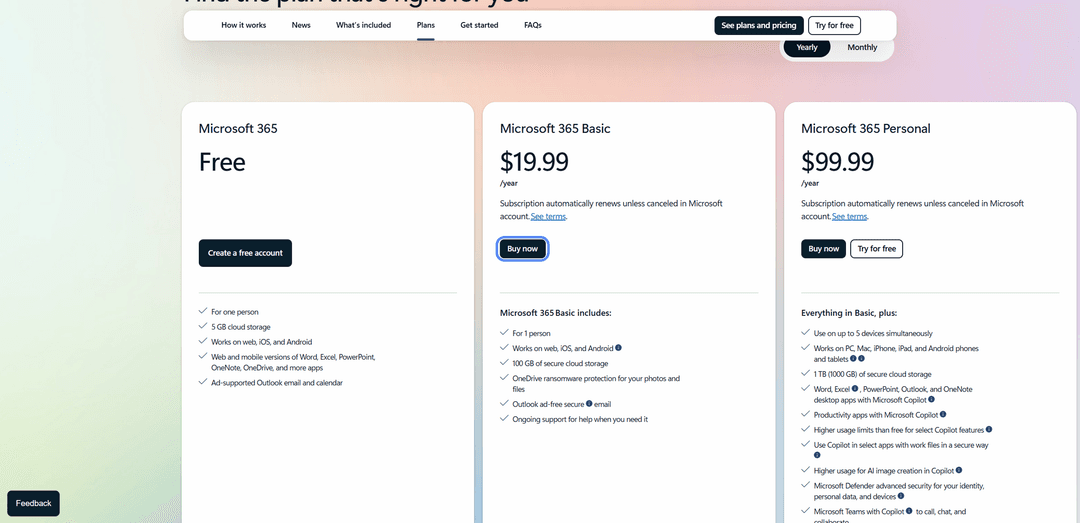
Click the subscribe button under your chosen option.
Add a payment method
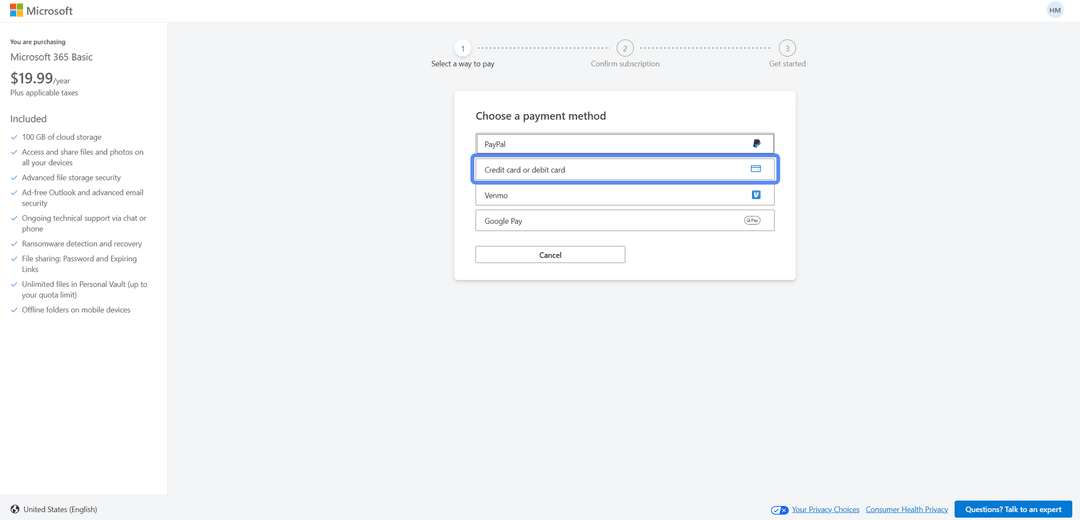
In the payment section, a list of available options will appear. Select "Credit or debit card".
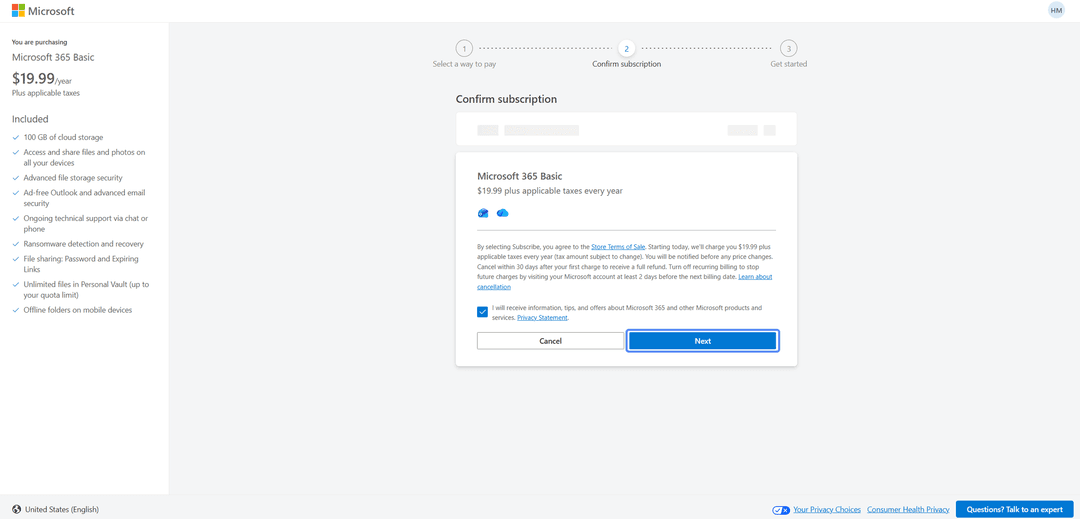
Confirm that you want to set up the subscription by clicking "Next". Make sure you have selected the correct plan.
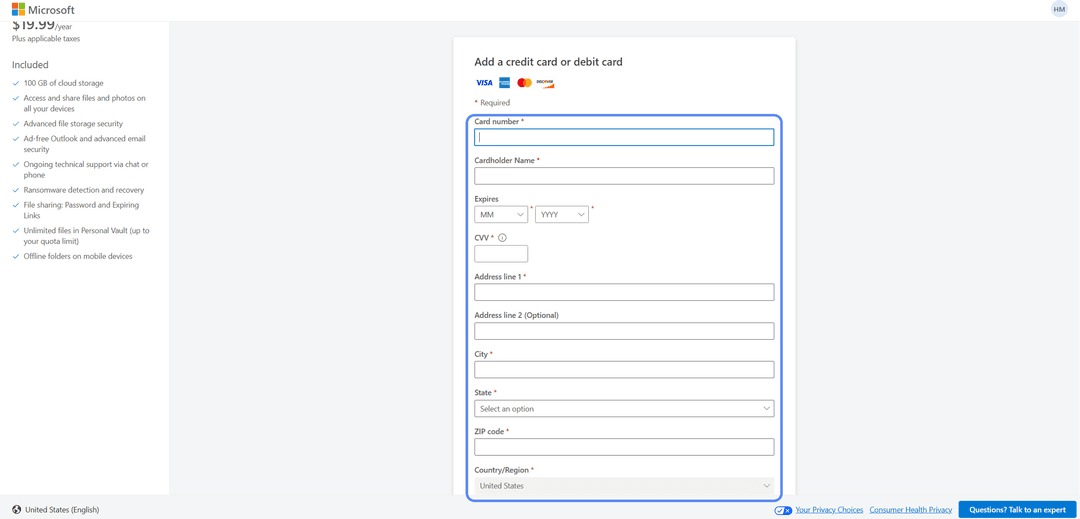
A form for entering card details will open.
Enter your details and complete payment
Fill in the fields with your Mirocard virtual card details — card number, expiry date, CVV, and cardholder name. All the data is available in your Mirocard account. If a billing address is required, enter a real address that matches the card's country.
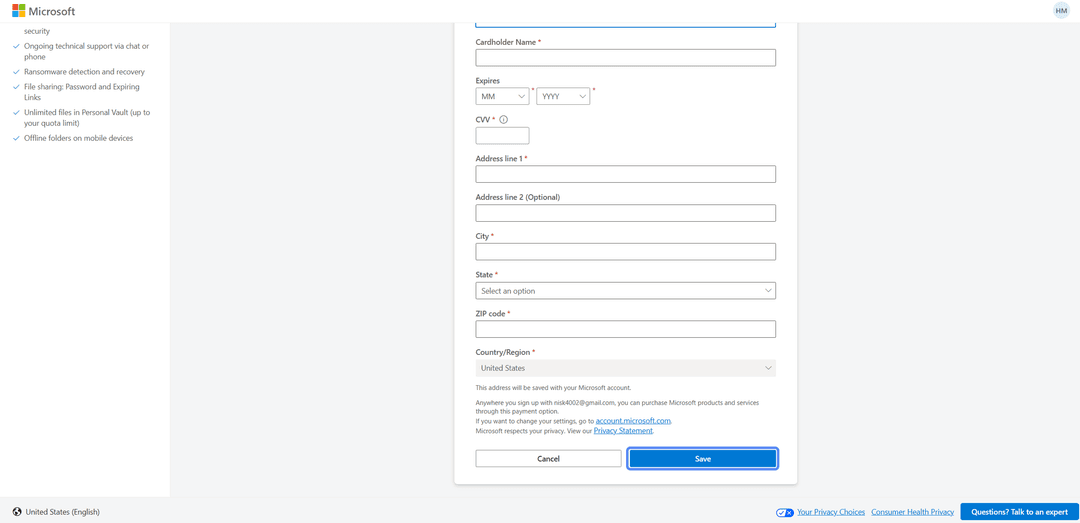
Complete the payment by clicking "Save" — the subscription activates immediately. From then on it renews automatically. You can cancel the renewal in your Microsoft account settings at any time.
If the payment did not go through
Check the card balance taking pre-authorization into account. Make sure the details were entered correctly, especially the CVV. If everything looks right but the payment is still declined, check that the account region matches the card address, then try again after a few minutes.
Conclusion
There are several ways to pay for Microsoft 365. Bank cards work directly but are difficult to obtain and do not support crypto payments. Intermediaries charge a markup and are inconvenient for subscriptions with auto-renewal. Virtual cards strike the right balance on speed, cost, and crypto compatibility.
Mirocard in this setup works like a regular Visa but is topped up with cryptocurrency. Set it up once and pay for the subscription directly from your crypto wallet, without withdrawing to fiat through exchanges. The same card pays for Netflix, Spotify, ChatGPT, and other services.
For cryptocurrency holders, this is the shortest path from crypto assets to a subscription, without losses on unnecessary conversions. And for those who cannot access standard international cards, a virtual card remains a reliable way to pay for Microsoft 365 and keep access to up-to-date versions of the programs.