How to Pay for a CapCut Pro Subscription with Cryptocurrency
CapCut is a video editor from ByteDance, the creators of TikTok. It works on a smartphone, a computer, and in a browser, and projects sync between devices through a single account. It's used by bloggers, social media marketers, and anyone who edits short videos for social networks.
We'll explain what the subscription gives you, how to pay for it, and how to choose a plan so you don't pay for credits you don't need.
How CapCut Pro differs from the free version
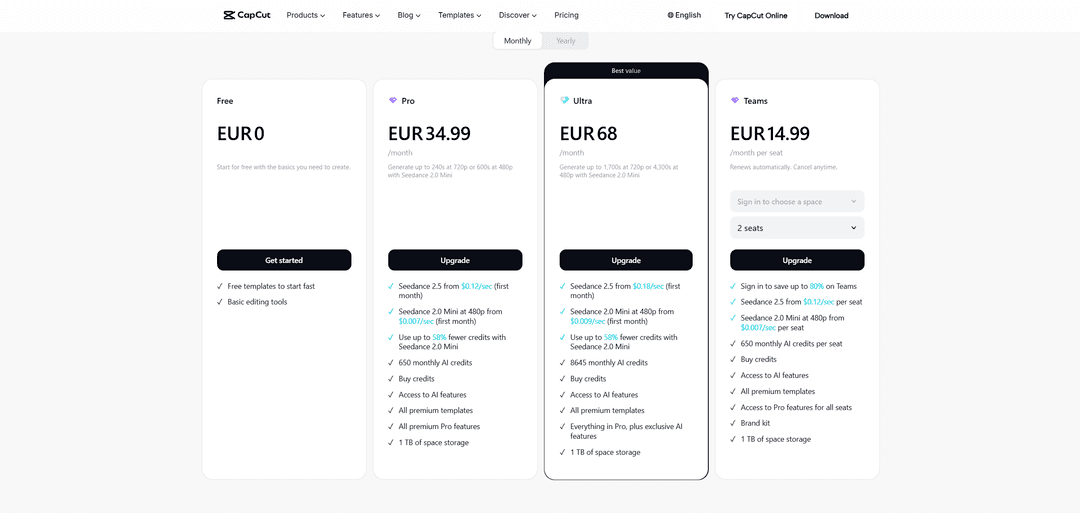
The main thing people pay for in Pro is video generation. On this plan, the credits are enough for about 240 seconds of video at 720p or 600 seconds at 480p on the Seedance 2.0 Mini model. If you need more, you can buy extra credits.
Can you pay for CapCut Pro directly with cryptocurrency
No. CapCut accepts bank cards, PayPal, Apple Pay, and Google Pay. Cryptocurrency isn't among the payment methods.
On top of that, CapCut saves your chosen payment method as the primary one and charges it for each renewal. A subscription needs a source that can be charged repeatedly, and a one-off cryptocurrency transfer doesn't work that way.
How to use cryptocurrency to pay for CapCut Pro
You can direct cryptocurrency into topping up a virtual card and then pay CapCut with the card. For the service, it's an ordinary Visa or Mastercard.
The scheme looks like this. You transfer coins to a virtual card service, top up the card, and subscribe to Pro on the CapCut website. Before each renewal, the card needs to hold the amount for the next month.
Keep in mind that the first month and the following ones are priced differently. CapCut gives a discount to new subscribers, and from the second month it charges the full price. Top up the card for the renewal at that price. Stablecoins USDT or USDC are more convenient for this, since their rate is pegged to the dollar.
How to pay for CapCut Pro with Mirocard
CapCut saves the card as the primary payment method and renews the subscription from it every month. So you need a card that reliably handles recurring charges. Mirocard issues such virtual Visa and Mastercard cards, and CapCut accepts them in its card payment section.
Mirocard is topped up in BTC, ETH, USDT, USDC, TON, TRX, or SOL. Coins arrive on your account balance, and you transfer to the card the amount for the nearest charge.
For CapCut, the subscriptions card, which costs from $5, with a top-up fee from 4%, is the right fit. It supports recurring charges, so the subscription will renew automatically.
We covered card issuance in the Mirocard guide. With the card ready, payment takes a couple of minutes.
Open the CapCut pricing page and choose the period, "Monthly" or "Yearly". Under the Pro plan, click "Upgrade" and sign in to your CapCut account.
On the payment screen, choose "Credit / debit card". Enter the card number, expiration date, and CVC from your Mirocard account dashboard in the "Card number", "Expiration date", and "Security code" fields, and the cardholder's name in "Cardholder name".
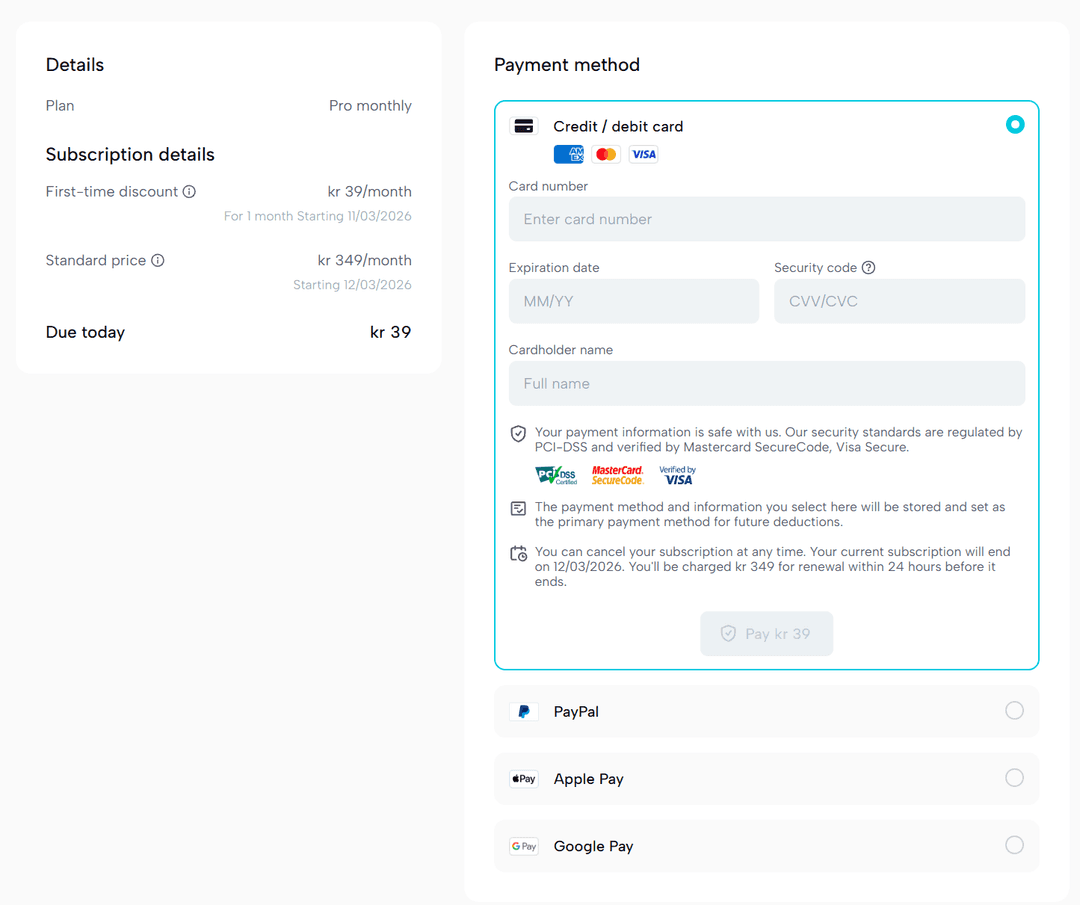
On the left, check the amount in the "Due today" line and the date when payment at the full price begins. Click the "Pay" button with the amount due. Pro turns on right after the payment.
How to choose a plan and not overpay for CapCut Pro
Compare plans by generation credits, not by price. On the pricing page in euros, Pro costs €34.99 a month and gives 650 credits, while Ultra costs €68 and gives 8,645 credits. Ultra costs about twice as much, but has more than 13 times the credits.
So Ultra is a good deal only for those who generate video constantly. If you mostly edit and only occasionally use AI, Pro will do, and you can buy any missing credits.
Look at the price after the discount. CapCut gives a discount on the first month and charges the full cost from the second. Prices also depend on the region, so the amount on the payment screen may differ from the price on the pricing page.
Cancel the subscription in advance. CapCut charges the renewal fee within 24 hours before the current period ends. If you no longer need Pro, cancel earlier.
Build in the card top-up fee. At 4%, a Pro subscription at €34.99 will require a top-up of about €36.39.
Conclusion
Before paying, make sure Pro is available for your account, and compare plans by credits. Then the subscription will pay for itself instead of turning into an unnecessary monthly expense.